
1. Overview
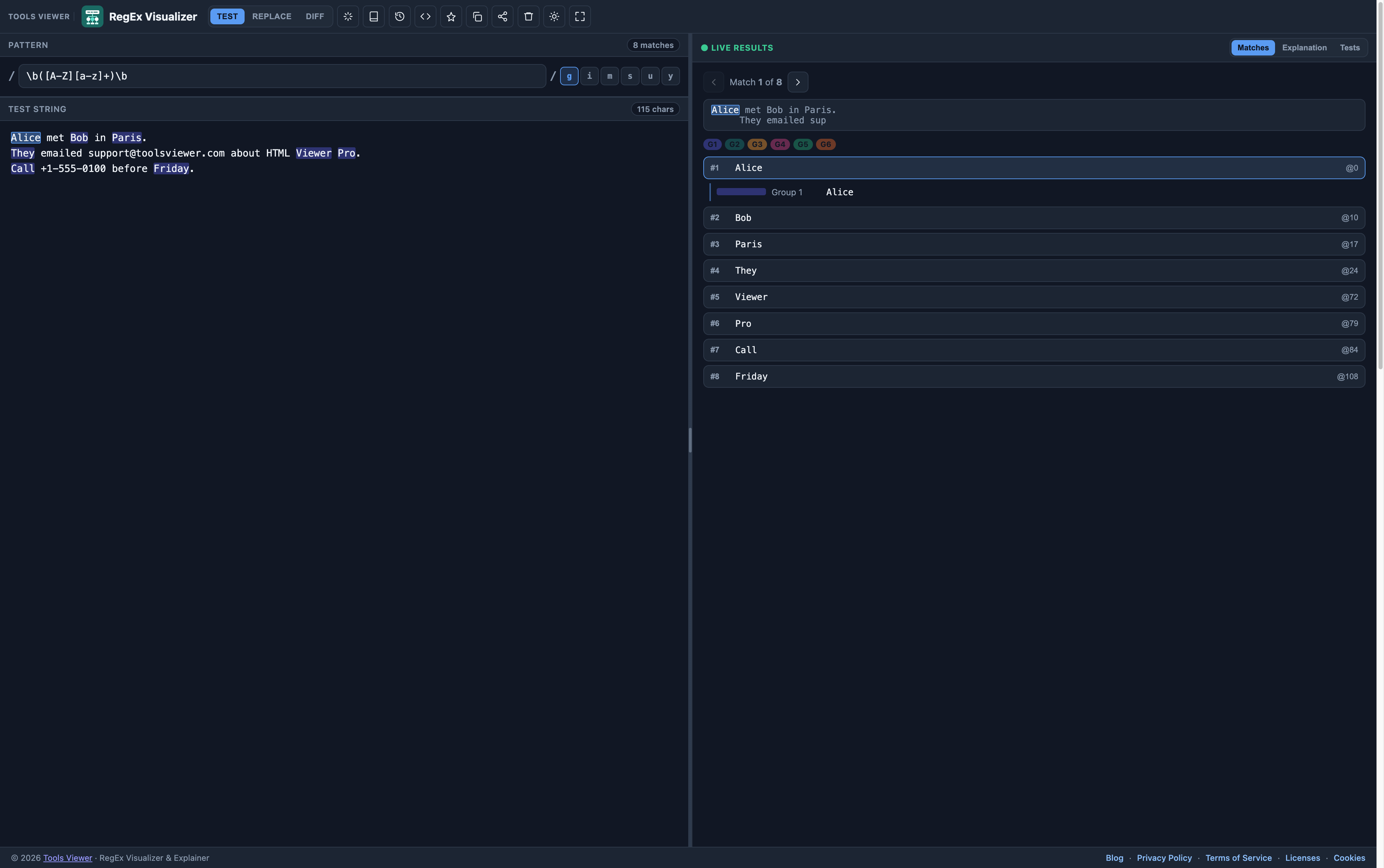
RegEx Visualizer & Explainer helps you debug regex patterns with live results. You can highlight matches, inspect capture groups, read a token-by-token explanation, and test replace/substitution — with unit tests and history to keep changes organized.
2. Workspace layout
The interface is split into four key parts:
- Pattern area — your regex pattern plus flags.
- Test input — the text you want to search.
- Results tabs — Matches, Explain, and Tests.
- Optional tools — Replace mode and Diff mode when you need more than match highlighting.
3. Enter a pattern
Start with a pattern that targets the exact text you want. If you are searching inside a paragraph, be careful with ^ and $ — they can force the match to be the whole string.
Tips:
- For “find in text” tasks, keep anchors out unless you truly need them.
- Add the
gflag when you want every match, not just the first. - Test with realistic input, including spaces, line breaks, and mixed case.
4. Match highlighting
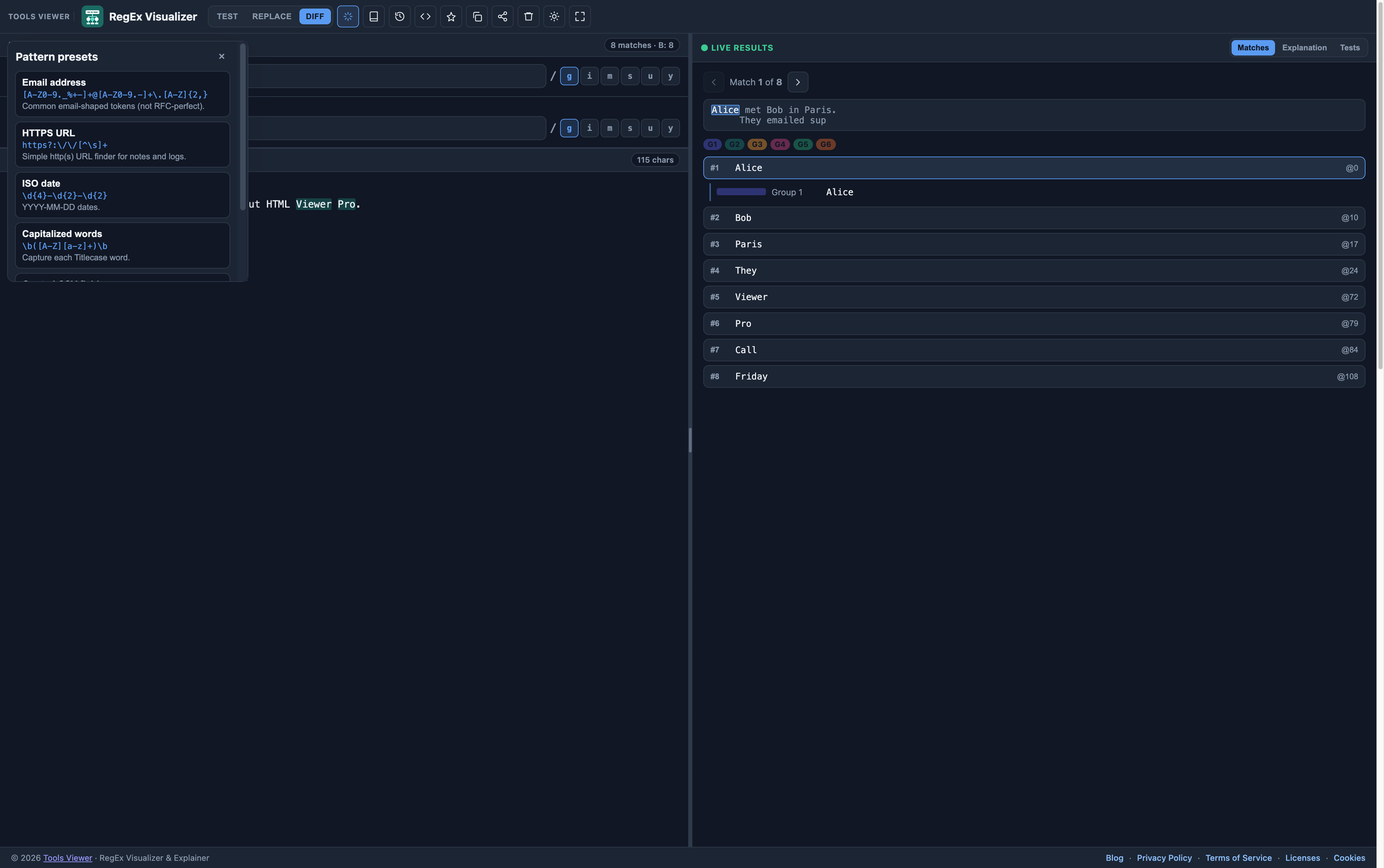
The Matches tab shows where your pattern hits in the test input. Each match is highlighted, and group colors help you connect the highlight to the captured parts.
When you see unexpected matches:
- Check for greedy quantifiers like
.*and use lazy ones like.*?when needed. - Make sure your character classes (like
[A-Z]or\\d) cover the full range of real input. - Confirm your flags so case and line behavior match your goal.
5. Token explanations
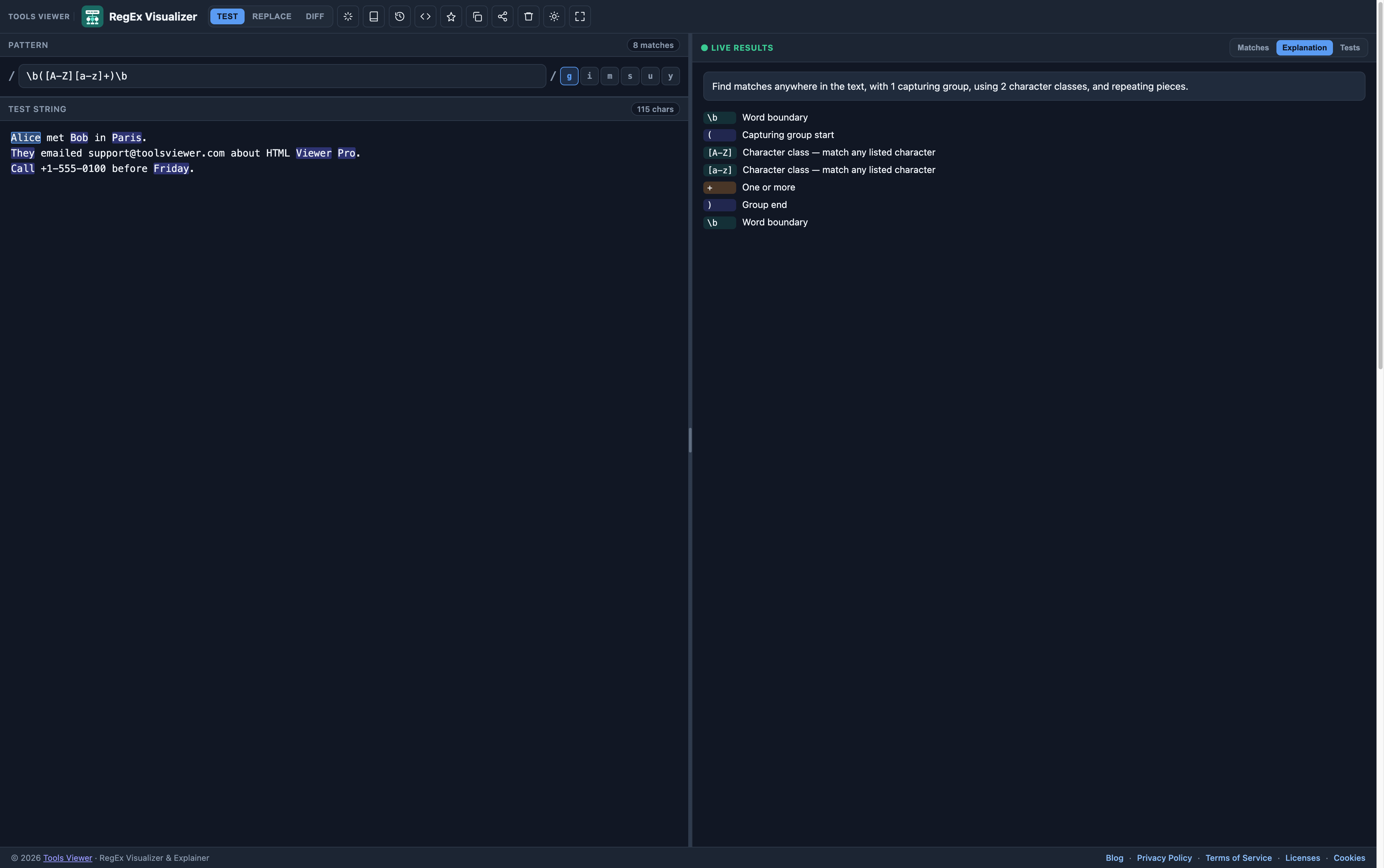
The Explain tab breaks your pattern into tokens and explains what each part does in plain language. This is the fastest way to learn why a group matches (or why it doesn't).
If you just want a quick reference, read the regex cheat sheet.
6. Capture groups
Capture groups store parts of a match so you can reuse them in replace strings, or verify what a group actually captured.
- Numbered groups are shown in order: group 1, group 2, and so on.
- Named groups (like
(?<name>...)) are easier to read when you replace them later. - If you do not need a group's value, use non-capturing groups to avoid confusion.
7. Flags (g, i, m, s, u, y)
Flags change how the whole regex behaves. In practice, most matching bugs come from one or two missing flags.
g— find all matchesi— case-insensitive matchingm— make^and$work per lines— let.match new lines
If you are new to debugging, start with regex tester online.
8. Replace mode
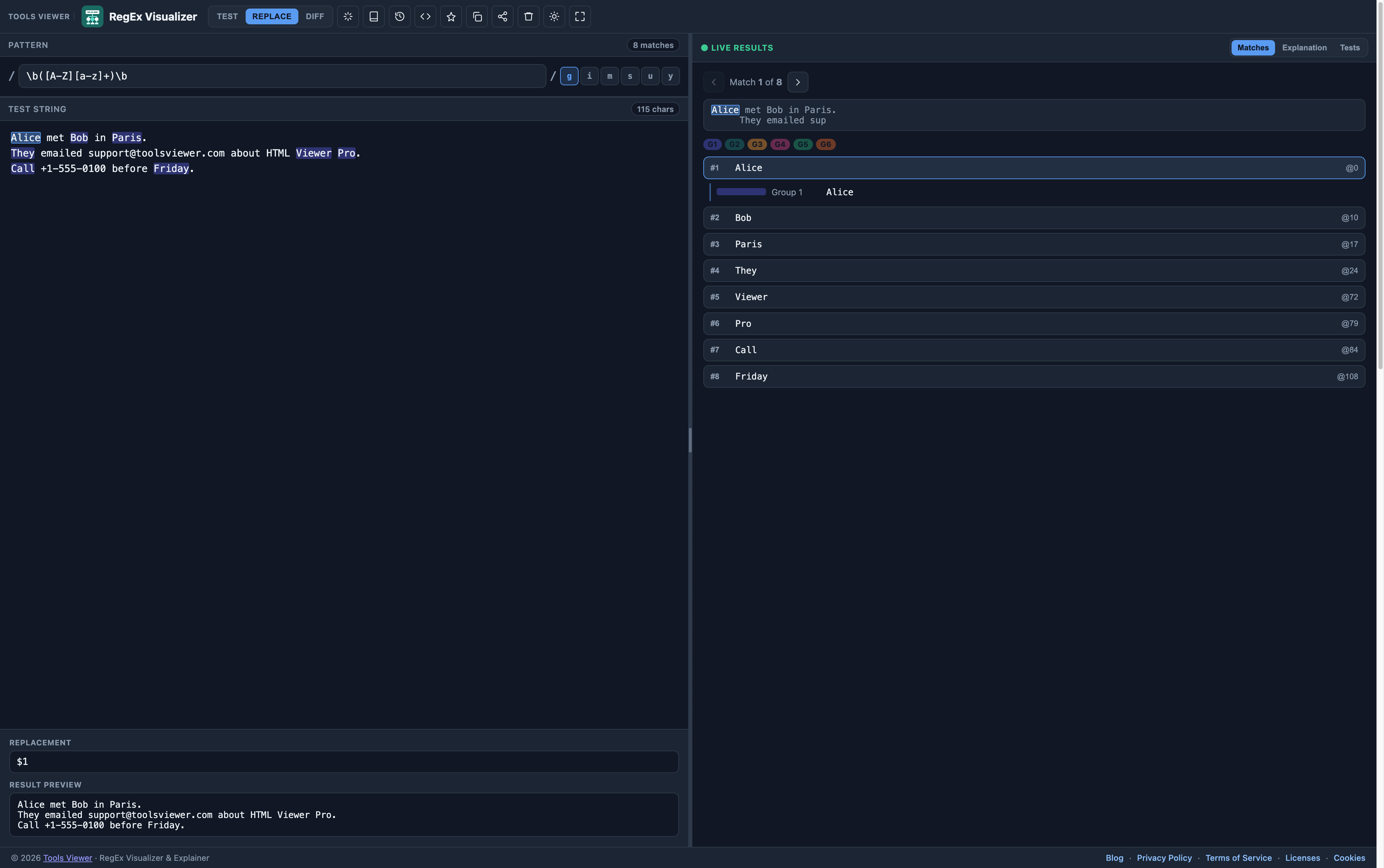
Replace mode previews the output after substitution. You can enter a replacement string and instantly see how it changes the text.
- Use
$1for the first capture group. - Use named backreferences for named groups when supported.
- Confirm your matches first, then switch to Replace mode.
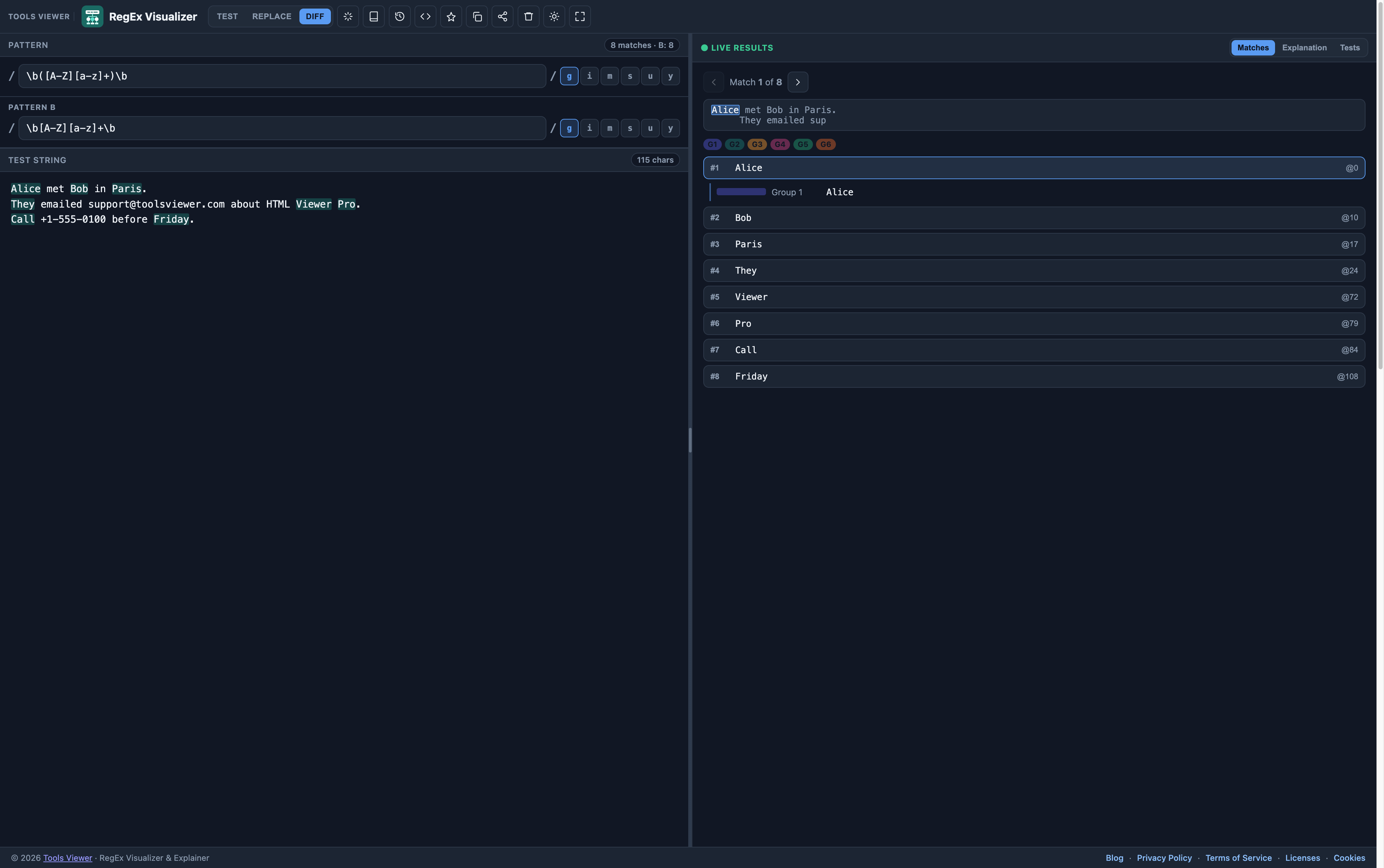
9. Diff mode (Pattern B)
Diff mode compares your current pattern with Pattern B. It's useful when you tweak a pattern and want to confirm what changed — not just that matches still exist.
10. Unit tests
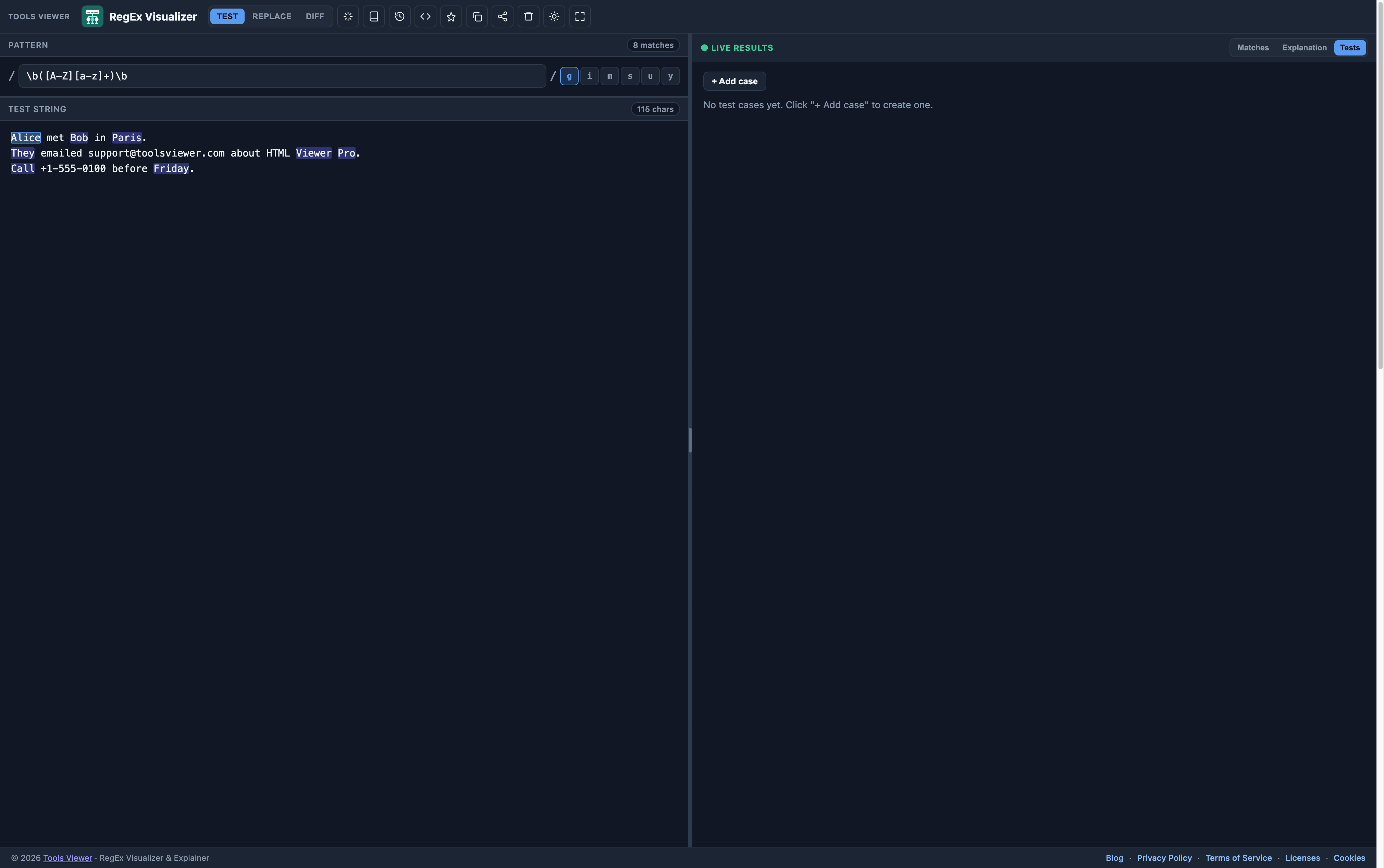
Unit tests help you keep regex behavior stable. Add test cases, run them, and see which cases pass and which fail.
- Use tests for tricky edge cases: empty strings, extra spaces, different cases, and unexpected punctuation.
- Re-run after each pattern change.
- Keep a small suite that covers the real data you see in production.
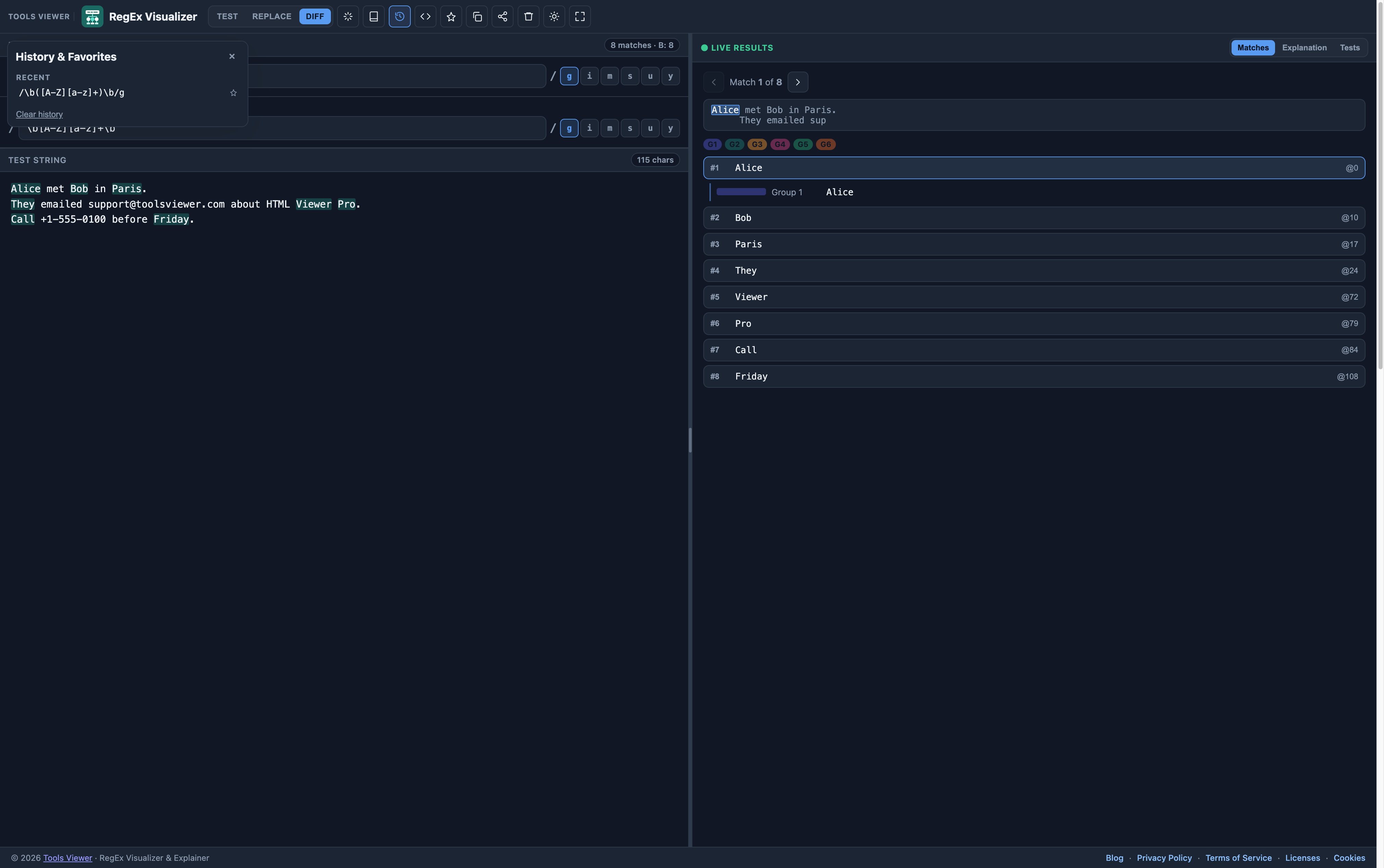
11. History & favorites
History and favorites store your patterns and test strings so you can return to a setup quickly. This also helps when you debug “works on my machine” issues.
12. Shareable URLs
You can share a pattern + flags + test string using a URL hash. That makes it easy to send a working regex debugging setup to a teammate or to future you.
- Share links restore your pattern state from the URL.
- Nothing is saved on a server by the share link itself.
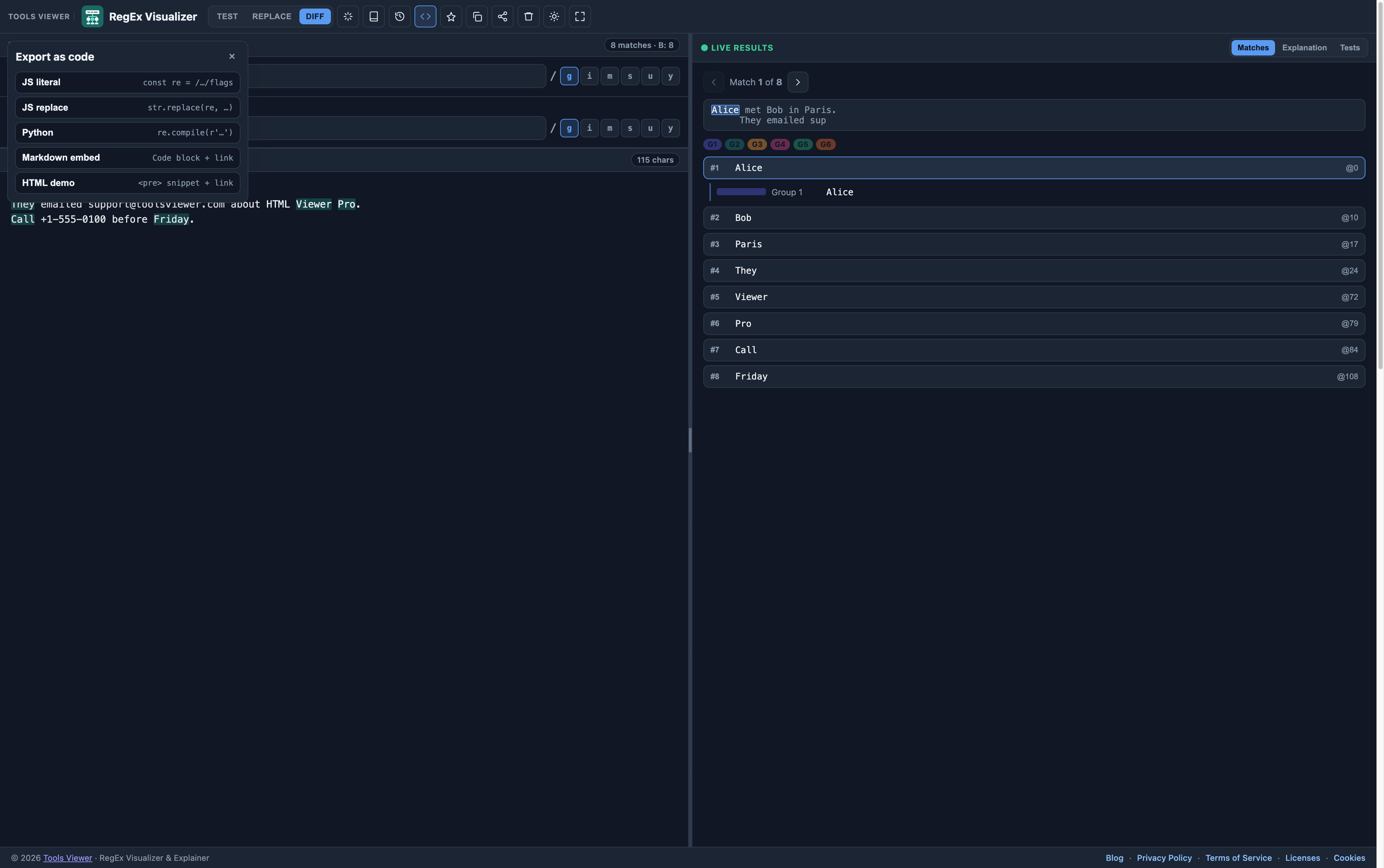
13. Privacy & storage
RegEx Visualizer & Explainer runs your regex work in your browser. Your pattern, test text, and replacement previews stay on your device unless you copy or export.
14. Detailed guides
Longer how-tos live as blog articles. Browse the full Regex visualizer blog category, or open a post below:
Regex Cheat Sheet: Patterns That Work
A practical regex cheat sheet covering character classes, anchors, quantifiers, groups, and lookaheads — with live examples you can test in your browser.
Read guideRegex Tester Online: Test Patterns Free
Test and debug regular expressions online with instant match highlighting, group capture results, and plain-English explanations — free, no signup.
Read guide15. FAQ
FAQ
Is this regex tester free?
Yes. RegEx Visualizer & Explainer is free on ToolsViewer with no signup. Pattern testing and explanations run in your browser.
Does the tool upload my regex or test text?
No. The tool processes your pattern, test string, and replacements locally in your browser. Nothing is uploaded to a server unless you manually copy or export results.
Which regex flavor does it use?
It uses the JavaScript RegExp engine in your browser (ECMAScript). Some advanced features and edge cases differ between regex flavors like PCRE and Python.
How do I see capture groups?
Open the Matches tab and use the group color map. Each match lists numbered and named capture groups so you can verify what each group captured.
How do I test replace / substitution?
Switch to Replace mode, enter the replacement string, and preview results next to your matches. Use $1 and named backreferences like $<name> where supported.
What is Diff mode?
Diff mode compares your current pattern with Pattern B. You can see how matches change between patterns and how the result highlights differ.