
1. Overview
HTML Viewer Pro is ToolsViewer's browser-based HTML viewer and editor with real-time live preview. Your markup never leaves your device for editing or preview — formatting, validation, and conversion all run locally. It is a preview toolkit, not a full cloud IDE.
2. All features
Everything below lives in the same workspace — use the toolbar Format, Minify, Validate, and Convert menus.
- HTML Formatter / Pretty Print — beautify indentation with js-beautify.
- HTML Validator — catch common tag/structure issues.
- HTML Viewer / Editor — Ace editor + sandboxed live preview.
- JSBeautifier — Format also beautifies CSS and JS in panels mode.
- HTML Minify — strip unnecessary whitespace.
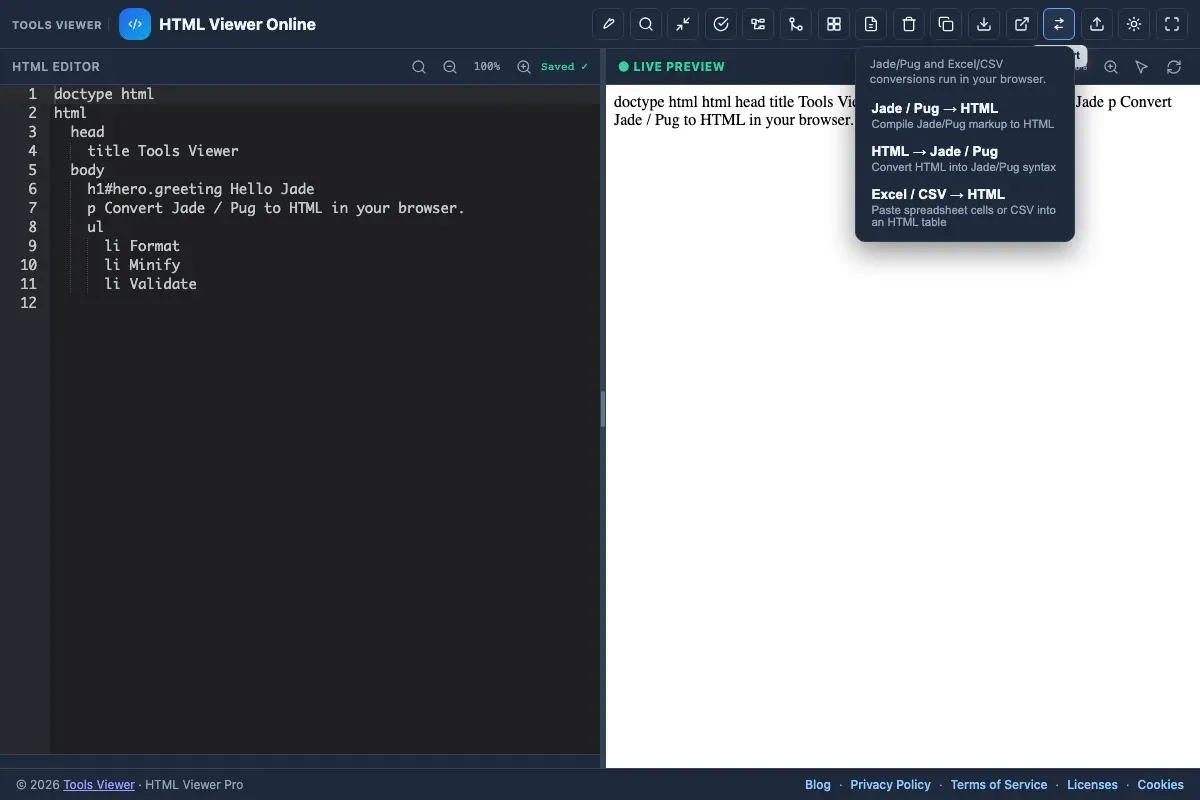
- Jade / Pug → HTML and HTML → Jade / Pug via Convert.
- Excel / CSV → HTML — paste spreadsheet cells or import
.csv/.tsvinto a table.
3. Workspace layout
The interface has three main areas:
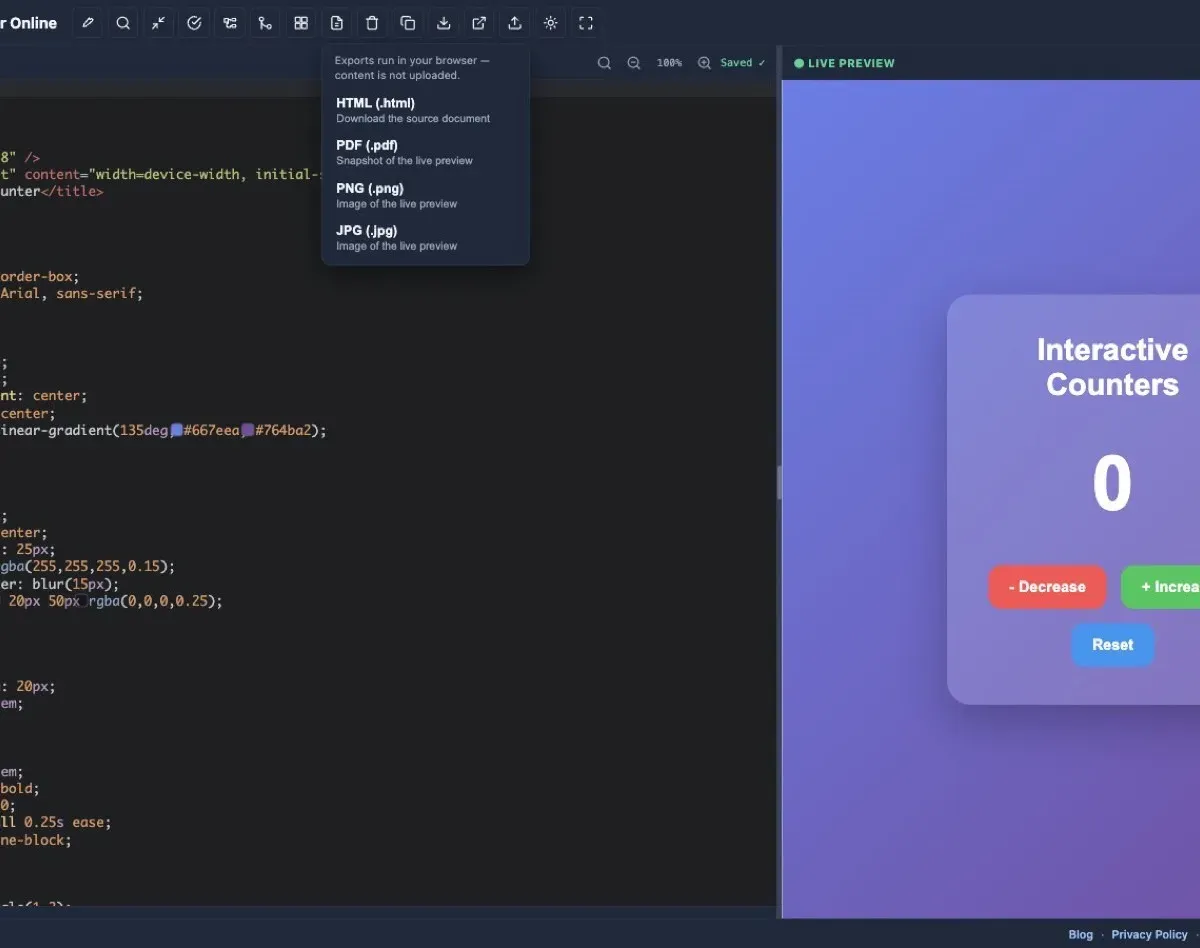
- Toolbar — actions across the top (format / pretty print, minify, validate, convert, Structure, diff, multi panels, search, import, export, theme)
- Editor — syntax-aware HTML editor on the left
- Preview — sandboxed live show on the right
4. Editing HTML
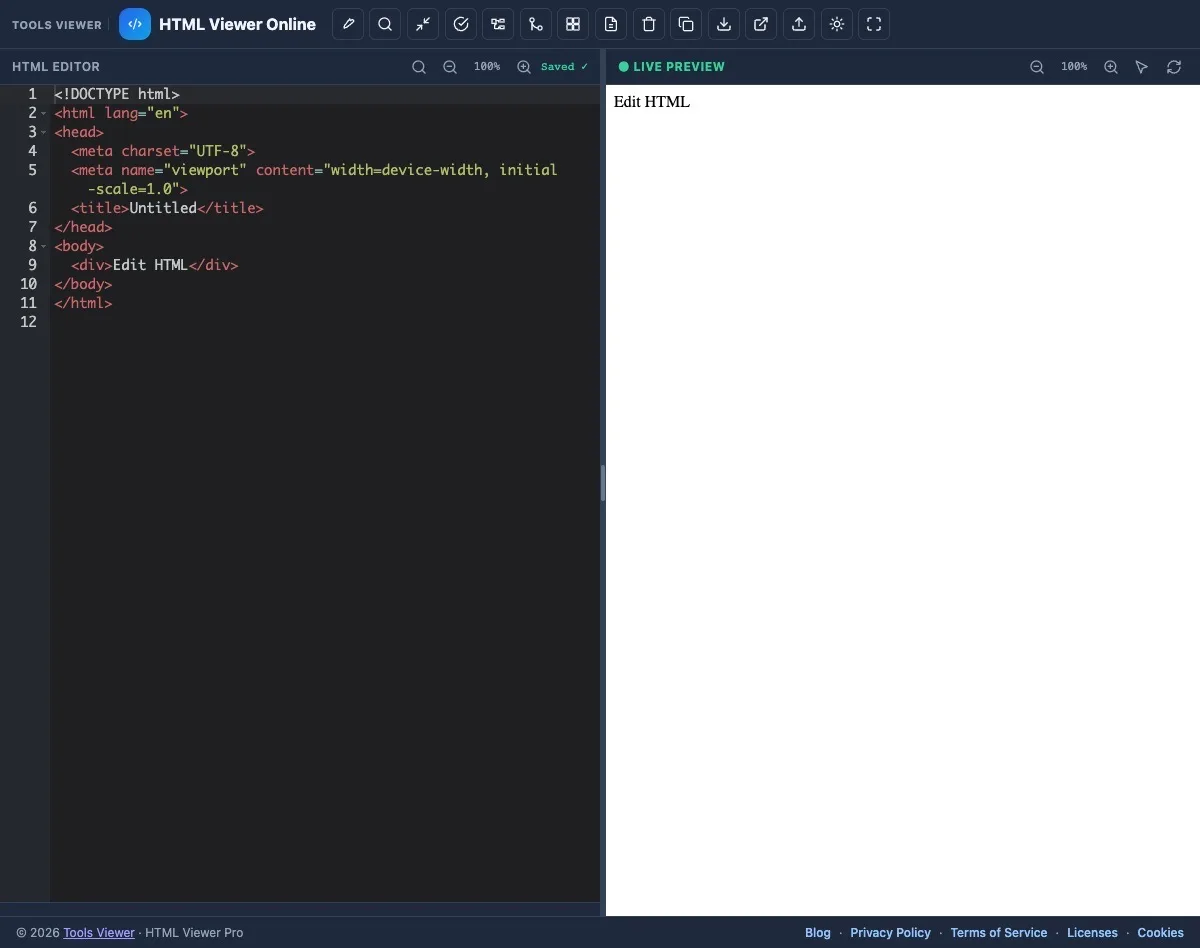
Paste or type HTML in the editor. Changes debounce into the preview automatically. Use the Sample button to load demo markup, or Clear to reset.
The editor is Ace-based with syntax highlighting. For large files, use Find in code (toolbar or panel search) to jump to tags, classes, and ids without scrolling — covered in the search HTML/CSS/JS blog .
Your last session can be restored from browser local storage when you return. Prefer separate CSS and JavaScript files in one workspace? See HTML / CSS / JS panels below.
5. Live preview
The preview shows inside a sandboxed iframe for safety. Use Refresh preview if you need to force a reload. Toggle Preview tab to open the show in a separate browser tab.
Embedded CSS and JavaScript run in the sandbox — helpful for testing interactive snippets. Relative asset URLs may need absolute paths or inlined content while prototyping (same caveats as other online preview tools).
6. HTML / CSS / JS panels
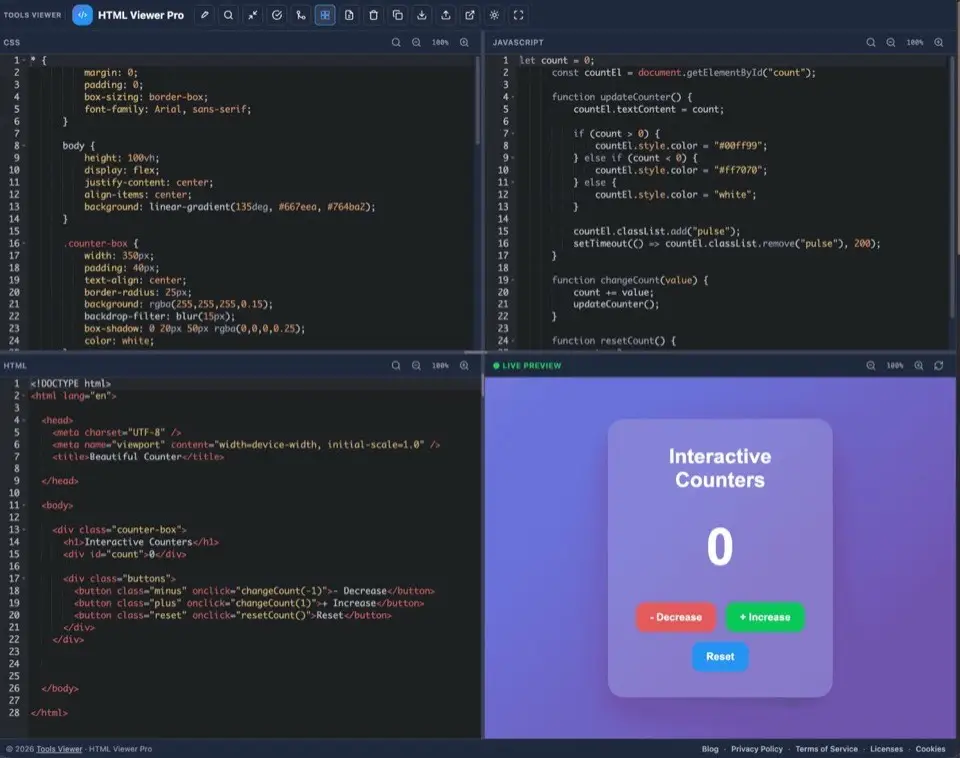
Click HTML / CSS / JS panels in the toolbar (four-square / multi-panel icon) to split your work into four resizable panes: CSS, JavaScript, HTML, and live preview. Each part stays editable without hunting through one giant document — a CodePen-style layout that still runs privately in your browser.
- Open HTML Viewer Pro with your markup loaded (or paste a full document).
- Turn on HTML / CSS / JS panels from the toolbar.
- Edit styles in the CSS pane and scripts in the JS pane; the preview updates as you type.
- Drag the split handles to give more room to any pane.
- Click the panels control again to merge everything back into a single HTML document.
- Format, minify, validate, and diff still apply to the composed document
- Each code pane has its own Find control — see the search HTML/CSS/JS guide
- Inspect element works best in single-editor mode — switch back when you need click-to-source
More detail: HTML / CSS / JS panels with live preview .
7. Format / Pretty Print (JSBeautifier)
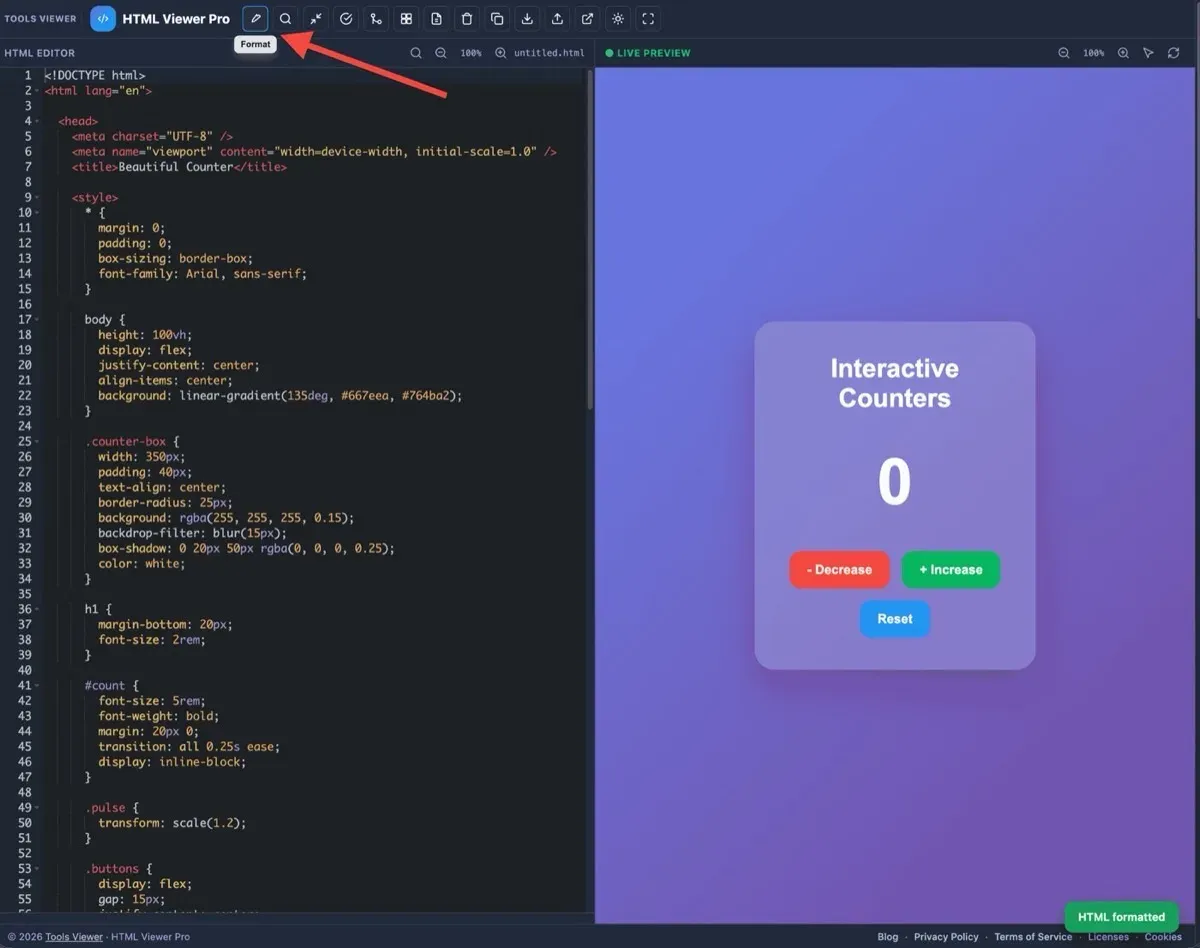
Click Format / Pretty Print in the toolbar to beautify the current document with readable indentation. HTML Viewer Pro uses js-beautify (the same engine behind many “JSBeautifier” tools) for HTML — and for CSS / JS when you are in panels mode. Formatting runs locally in your browser.
- Prefer formatting while you edit and debug
- Keep a formatted master if the page uses
<pre>or other whitespace-sensitive content - Use Copy anytime to put the current editor content on your clipboard
8. Minify HTML
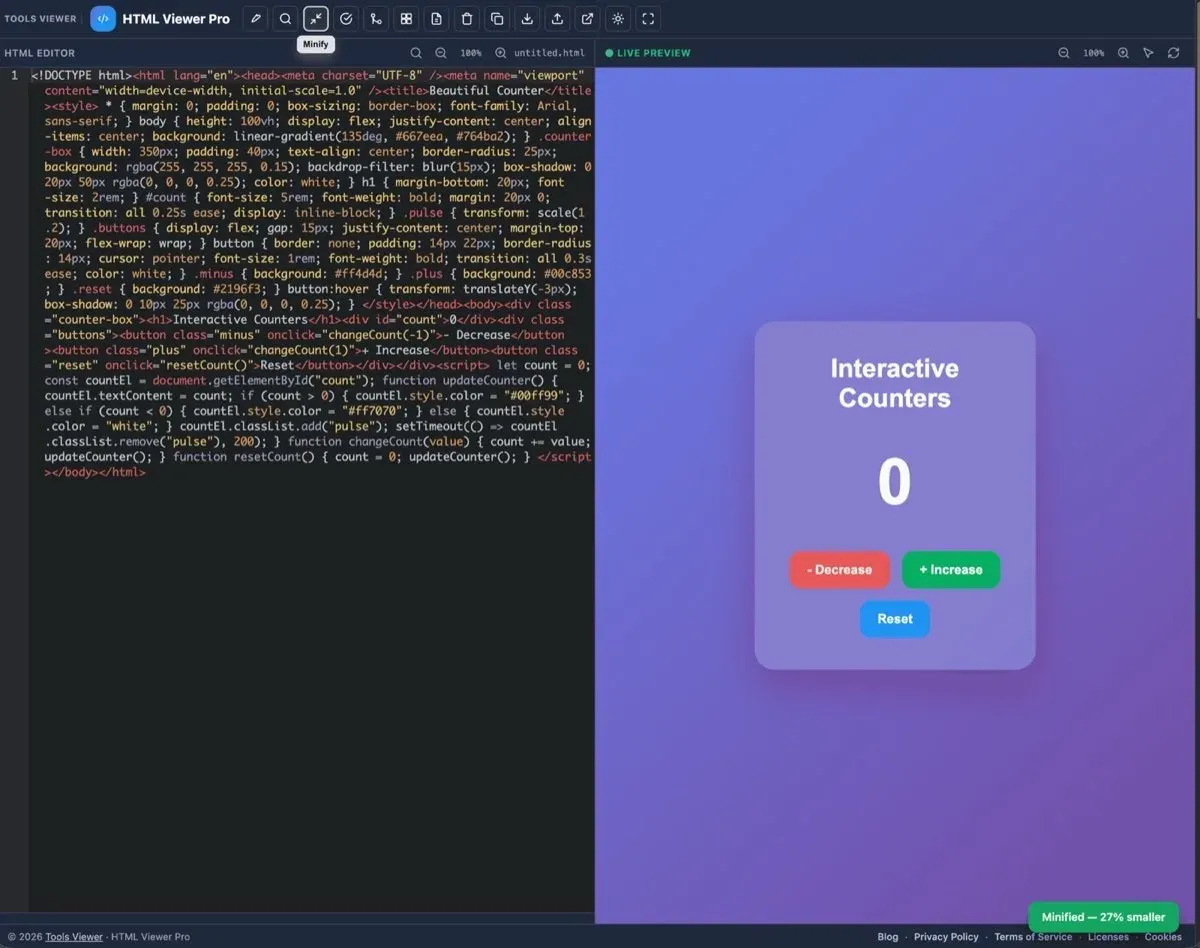
Click Minify to strip unnecessary whitespace for a more compact export. Minify also runs locally. Treat it as an export step: format and validate first, then minify if you need a smaller snippet.
- Preview after minifying to confirm layout still looks correct
- Avoid minifying as your only saved copy when you still need to edit — keep a formatted version
- Optional: open Diff View before/after minify to see what changed
9. Convert Jade / Pug & Excel / CSV
Open the Convert menu for:
- Jade / Pug → HTML — paste Jade/Pug (or import
.jade/.pug) and compile common tags,#id/.class, attributes, and nesting into HTML. - HTML → Jade / Pug — turn an HTML tree into Jade/Pug syntax for templating workflows.
- Excel / CSV → HTML — paste tab-separated Excel cells or CSV/TSV (or import
.csv/.tsv) to build an HTML<table>.
Jade/Pug support is a browser-side subset — mixins, filters, and JS interpolation are not supported. Binary Excel .xlsx workbooks are not parsed; copy cells from Excel or use CSV/TSV.
10. Validate
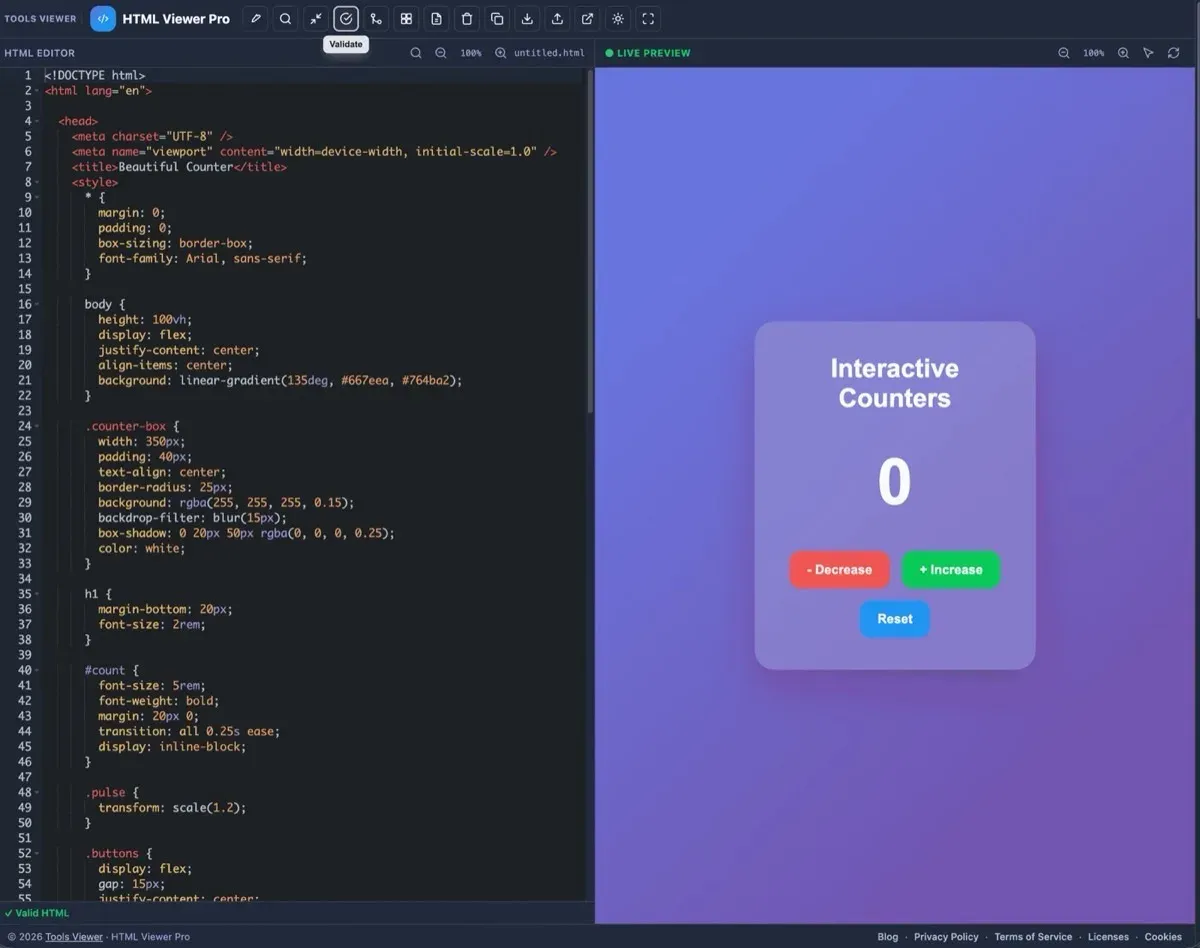
Validate checks your document for common HTML issues and surfaces messages in the status bar. Fix reported line issues in the editor and re-run validation.
11. Structure outline
Click Structure to open a DOM outline of the current document. Stats summarize elements, depth, links, images, headings, forms, tables, scripts, and stylesheets. Parsing runs in your browser with DOMParser — the outline is capped at 400 nodes for large pages.
- Use Structure after Format so the outline matches readable markup
- Pair with Validate for syntax issues and Inspect when you need click-to-source in the preview
- Nothing is uploaded — the tree is built from the editor HTML on your device
12. Diff mode
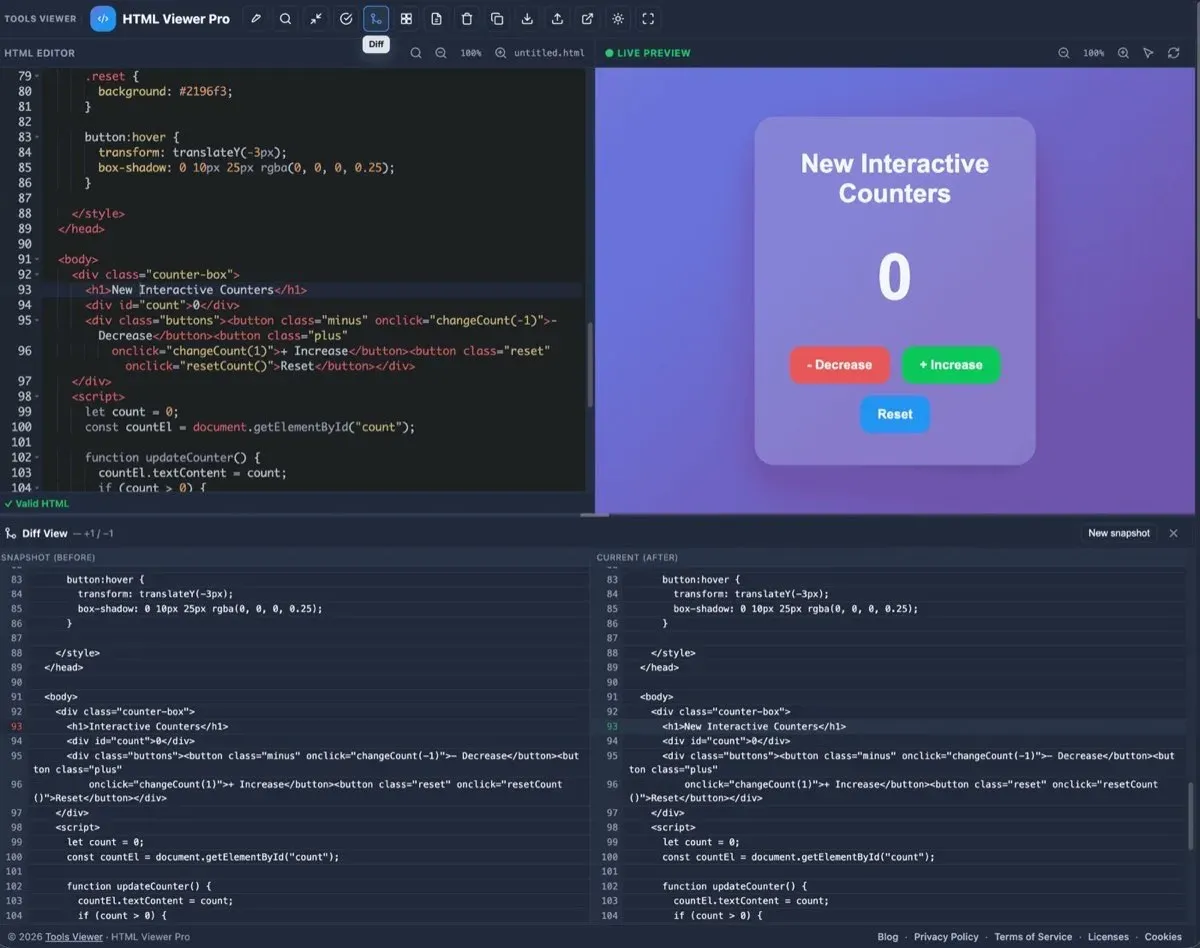
Open Diff View to compare a snapshot with your current markup. Additions appear in green and removals in red — useful for reviews and catching regressions. Use New snapshot to capture the current editor state as the baseline.
13. Inspect element
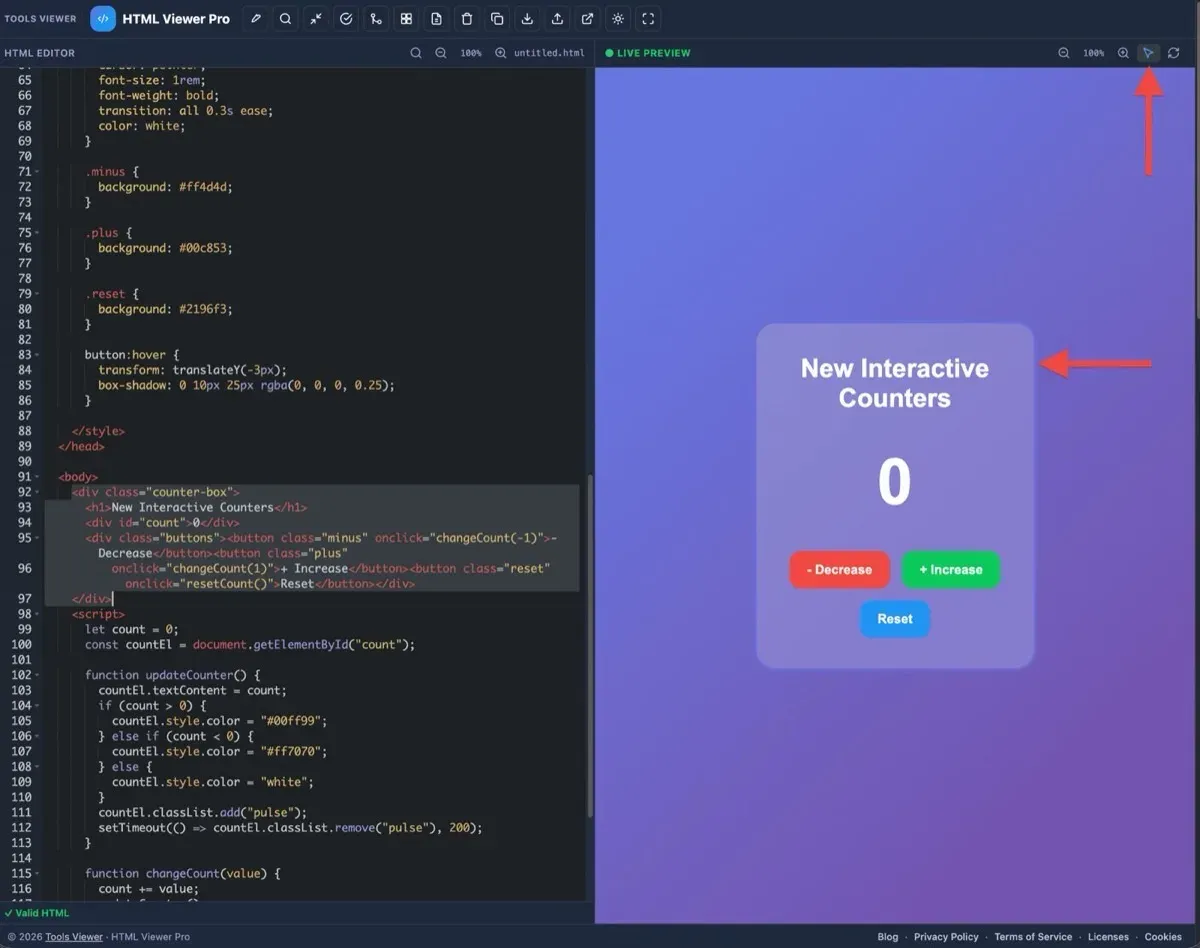
Turn on Inspect element, then click any element in the preview. The editor scrolls to the matching source so you can see which code produced that node. Best in single-editor mode (switch back from HTML / CSS / JS panels when you need click-to-source).
Use inspect together with Validate (syntax), Structure (outline), and Diff (what changed) for a fast private debug loop — no DevTools required for draft snippets.
14. Import & export
- Import — load
.html/.htmfiles from your computer - Export → HTML — download the current editor content as an HTML file
- Export → PDF / PNG / JPG — snapshot the live preview in your browser (canvas rasterization via html2canvas + jsPDF for PDF). This is not a print-engine or vector PDF.
- Copy — put the current markup on your clipboard without downloading a file
Files are read and written locally; nothing is uploaded to Tools Viewer servers just to open, preview, or export. For dedicated how-tos, see open an HTML file online and convert HTML to PDF online .
15. Privacy & storage
HTML Viewer Pro processes your code on-device. Optional preferences (theme, layout) use local storage. That makes it suitable for client drafts and internal snippets when you do not want paste-bin uploads.
- No account required for core editing and preview
- Format, minify, validate, Structure, diff, search, preview, and export are designed to run locally
- Clear editor content and browser site data on shared devices when finished
See our Privacy Policy and Terms of Service, plus the private HTML editor article.