
1. Overview
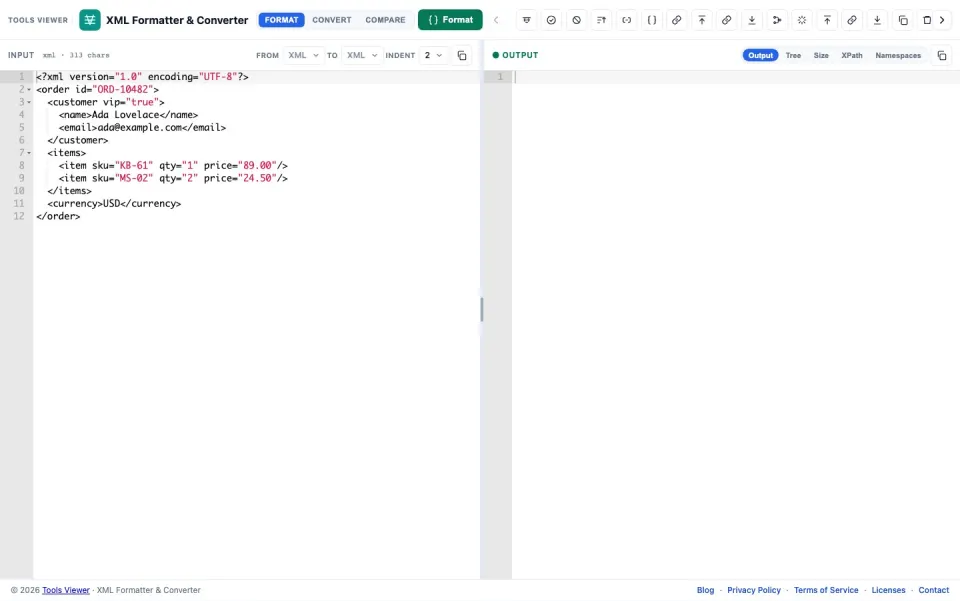
XML Formatter & Converter is a free browser tool for reading, editing, validating, comparing, and converting XML. Paste markup, pretty-print or minify, run XPath, inspect namespaces, convert to JSON / CSV / TSV / YAML / string, compare two documents, browse a tree outline, then download the result. Core work runs on your device.
2. All features
Everything below is available in the same workspace — use the mode toggle (Format / Convert / Compare) and toolbar actions.
- XML formatter / pretty print / validator
- XML minify and one-line output
- XML to JSON / JSON-LD / CSV / TSV / YAML conversion
- Export TypeScript, C#, Java, JS, Python, and Lua helpers
- XPath tester for node and scalar queries
- Namespace inventory for prefix/URI auditing
- SOAP and WSDL sample presets
- Escape / unescape XML entities
- Base64 encode / decode for XML payloads
- URL encode / decode utilities
- Strip XML comments
- Sort XML attributes
- XML tree view output
- Side-by-side XML compare with diff view
- Private browser-only processing
Prefer JSON workflows? Open JSON Formatter & Converter .
3. Workspace layout
The interface focuses on a few key parts:
- Modes — Format, Convert, or Compare.
- Editor — paste or edit input (XML A in Compare).
- Output / XML B / Tree / Diff / XPath / Namespaces / Size — result tabs for text, outline, compare report, queries, and stats.
- Actions — Format/Convert/Compare, Minify, Validate, utilities, Download.
4. Format, minify & validate
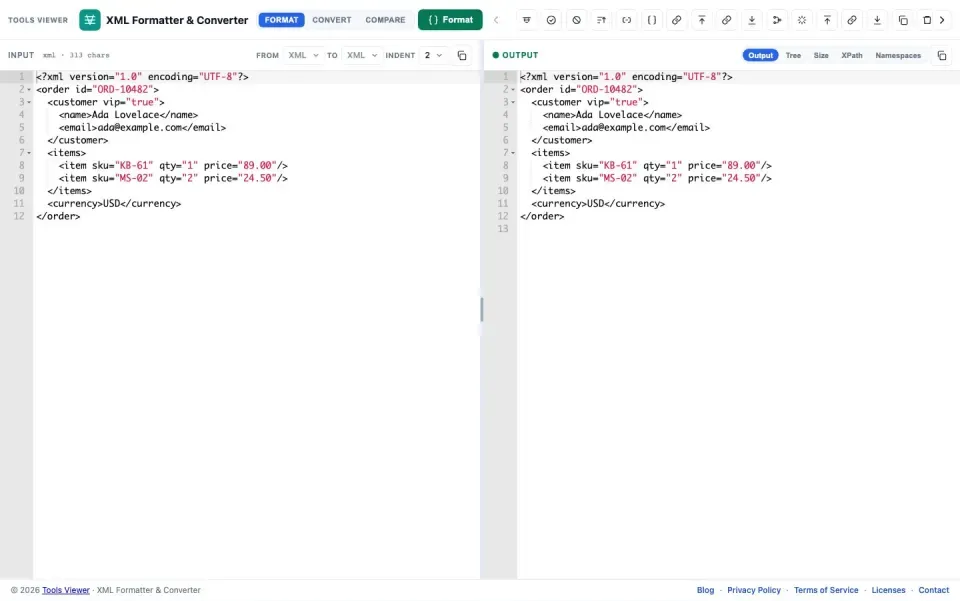
Use Format to pretty-print well-formed XML with your chosen indent. Use Minify for compact one-line output. Validate confirms the document parses and surfaces parser errors with line hints when available.
- Fix unclosed tags, mismatched quotes, and entity issues first.
- Format mode expects well-formed XML input.
- See also XML formatter online , validate XML online , and minify XML online .
5. Converters (JSON, CSV, TSV, YAML, string & code)
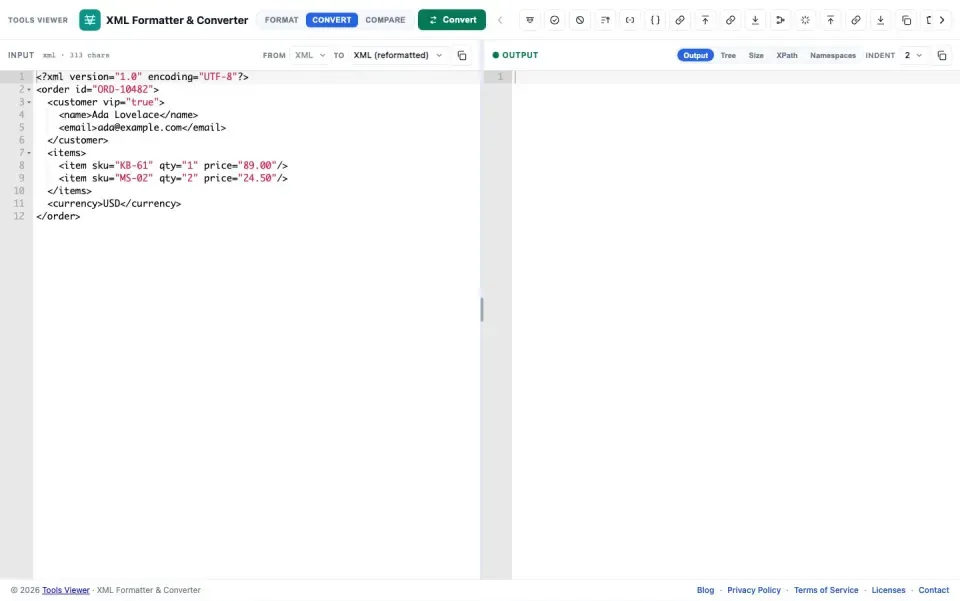
Open Convert, keep From as XML, pick a To format, then run Convert. Built-in converters include:
- XML to JSON — structured object from the element tree.
- XML to JSON-LD — context-friendly object export.
- XML to CSV / TSV — tabular rows for spreadsheet-friendly shapes.
- XML to YAML — indented YAML document.
- XML to String — escaped string literal.
Extra outputs: TypeScript, C#, Java, JS, Python, and Lua helpers, plus reformatted XML and plain text. Longer walkthrough: convert XML to JSON and XML to YAML / CSV .
6. XPath & namespaces
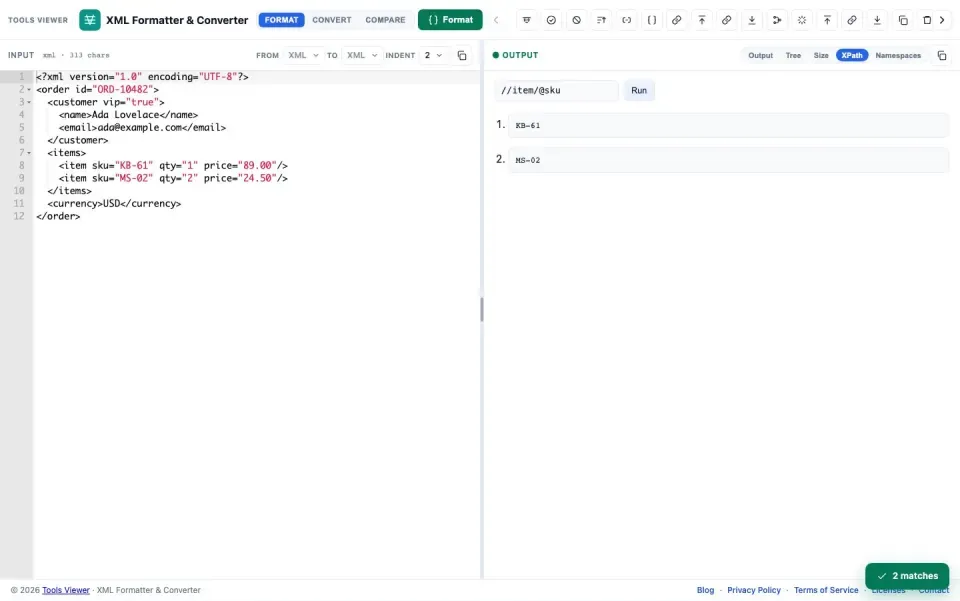
Open the XPath tab, enter an expression (for example //item/@sku or count(//customer/*)), and run it against your XML. Results appear as serialized nodes or scalar values.
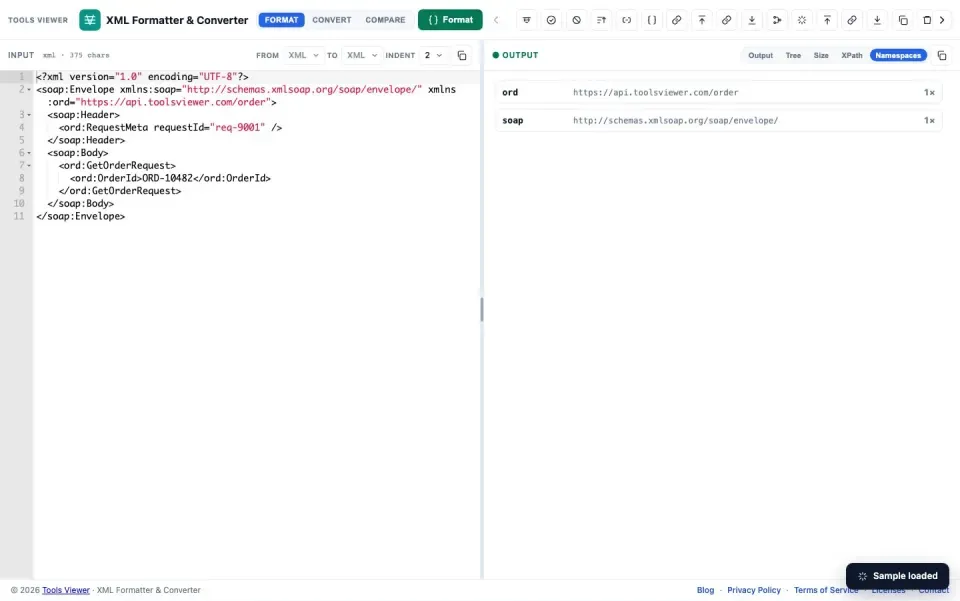
The Namespaces tab lists declared prefixes and URIs with occurrence counts — useful for SOAP envelopes, WSDL, and namespaced config. Load SOAP or WSDL samples from the Samples menu to try these panels quickly. See XML XPath tester and SOAP / WSDL XML formatter .
7. Compare, tree & unique extras
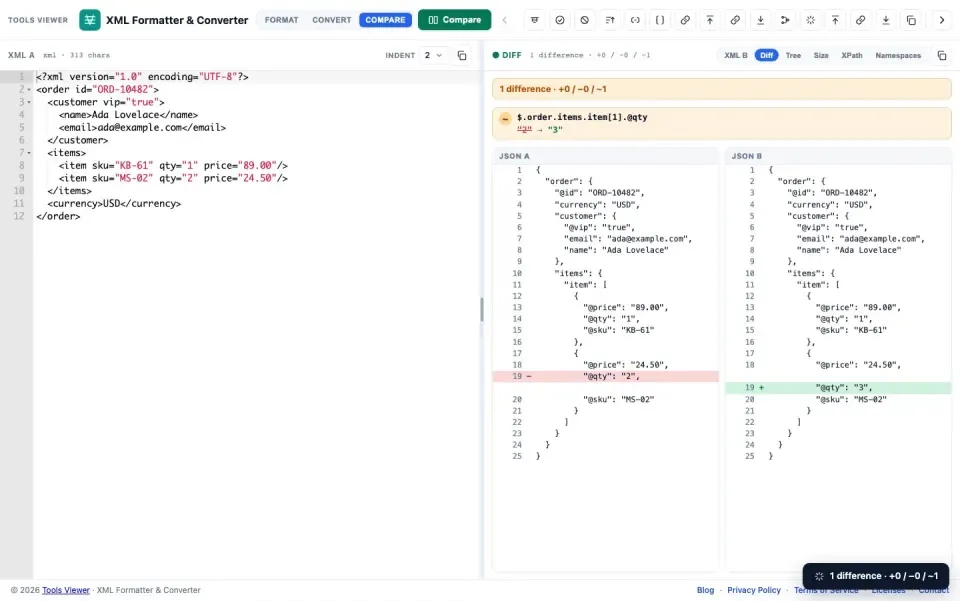
Compare mode places XML A on the left and XML B on the right. Run Compare to open the Diff tab with a path-level report of structural differences.
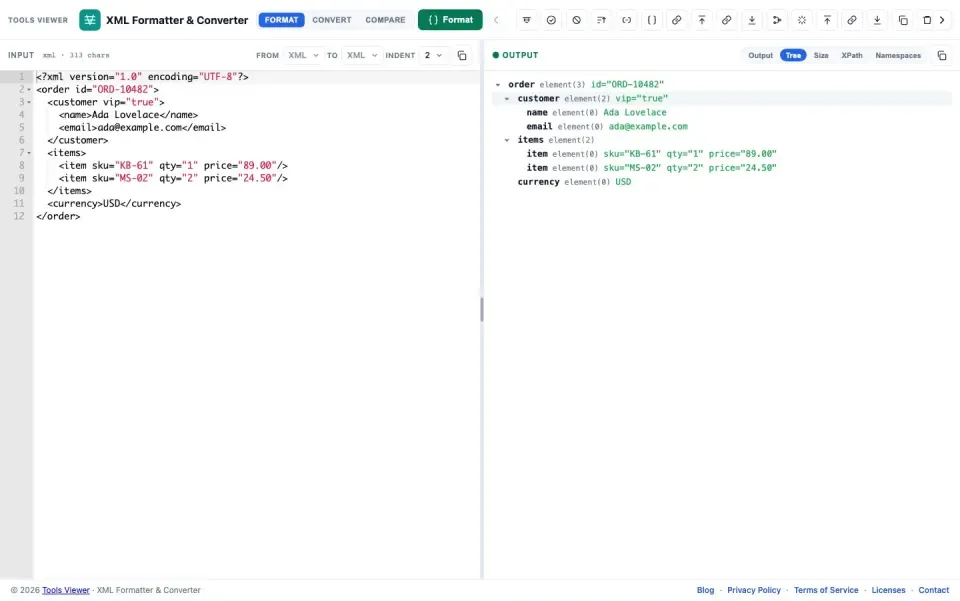
Use the Tree tab for a collapsible outline. Utility actions include Strip comments, Sort attributes, Escape / Unescape, Base64, and URL encode / decode. See also compare XML online .
8. Import URL & download
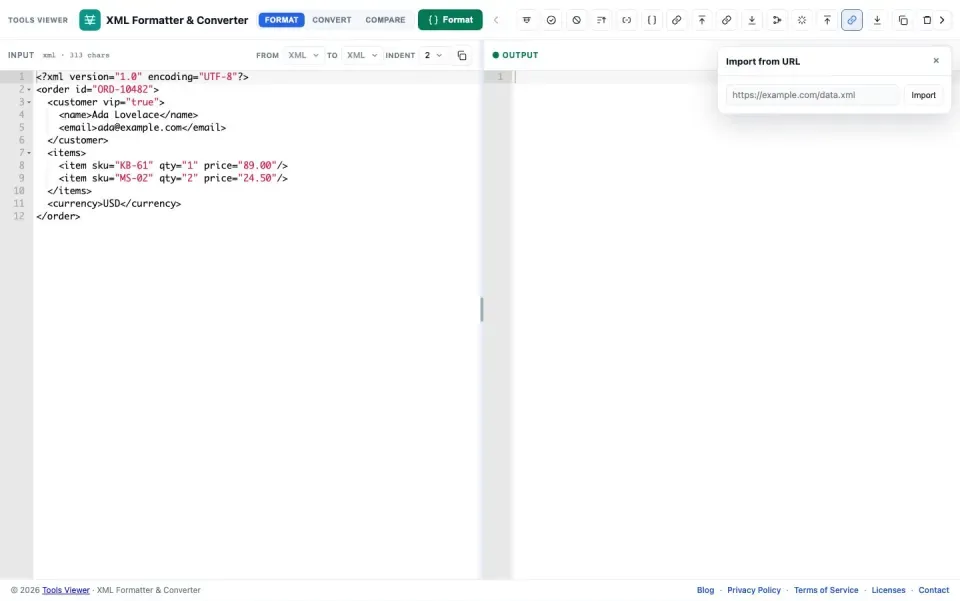
Import URL fetches a public http(s) XML or text resource from your browser. The remote host must allow CORS; private or blocked APIs will fail in the browser for security reasons. Tools Viewer does not proxy or store that content on our servers.
After formatting or converting, use Download to save a file locally (XML or the selected output extension such as .json, .csv, .tsv, .yml, .ts, or .cs).
9. Size calculator
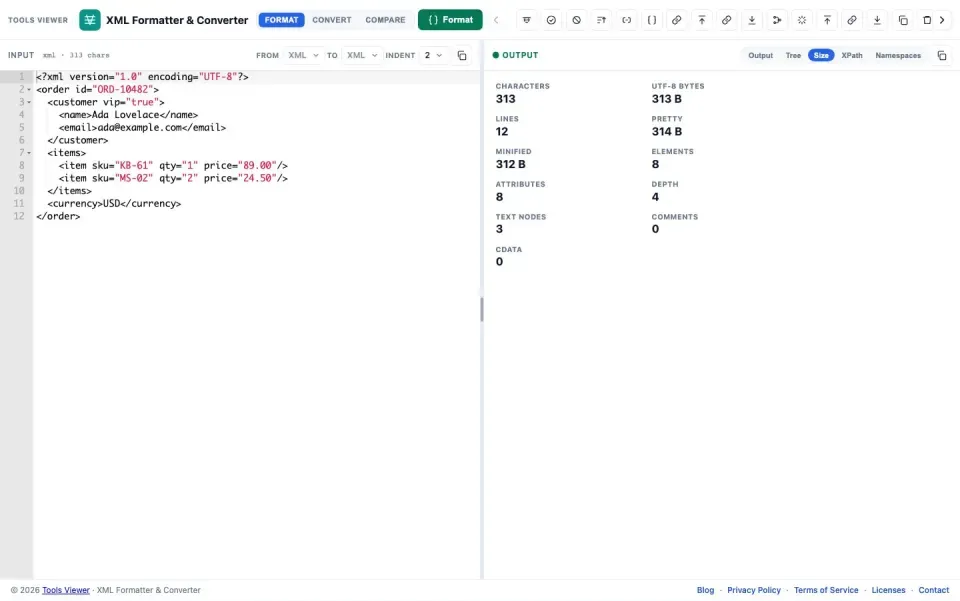
The size panel reports characters, UTF-8 bytes, pretty vs minified size, element depth, attribute counts, comments, and CDATA sections for the current document. Use it to see how much space Minify saves before you ship a payload.
10. Privacy
Formatting, validation, XPath, conversion, compare, and tree browsing run in your browser. No signup is required. Import from URL contacts the remote host from your browser subject to CORS — that fetch is not proxied through Tools Viewer servers.