
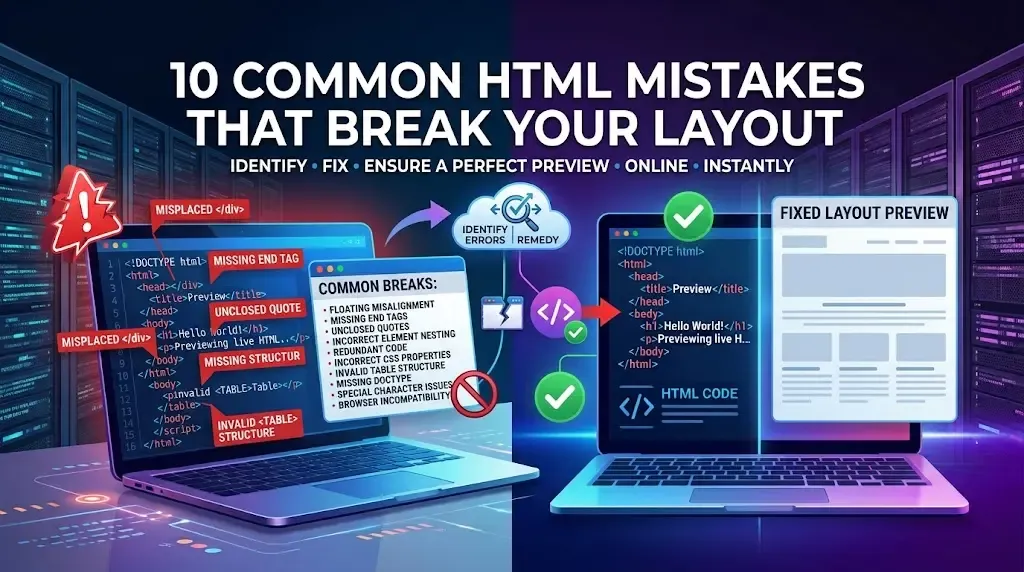
HTML mistakes can make a website look broken, behave unexpectedly, or become difficult to maintain. Some problems are obvious, such as a missing closing tag that pushes content out of position. Others are less visible but can still create HTML layout bugs, confusing document structure, or unexpected browser behavior.
The good news is that most common HTML mistakes are easy to identify once you know what to look for. In this guide, we will cover 10 frequent HTML errors, explain why they happen, and show practical ways to fix broken HTML layout issues.
You can also use an HTML inspection tool such as ToolsViewer HTML Viewer to review your markup and see how your HTML behaves in the browser.
What Are Common HTML Mistakes?
Common HTML mistakes are markup errors or poor coding practices that can affect how a webpage is structured, displayed, or interpreted.
Some errors come from incorrect syntax, while others happen because developers use the wrong HTML element for a particular purpose.
Typical examples include:
- Unclosed HTML tags
- Incorrectly nested elements
- Missing quotation marks
- Duplicate IDs
- Missing image attributes
- Incorrect links
- Overusing
<div>elements - Poor heading structure
- Invalid attributes
- Mixing HTML and CSS responsibilities poorly
Not every HTML error will visibly break a page. However, identifying these issues early can make your website easier to maintain and troubleshoot.
Forgetting to Close HTML Tags
One of the most common HTML mistakes is forgetting to close an element.
For example, a developer may open a <div> but forget to add the corresponding closing tag.
This can affect the elements that follow it because browsers may try to interpret the remaining markup based on the incomplete structure.
<!-- Broken: missing </div> -->
<div class="card">
  <h2>Welcome</h2>
  <p>This section never closes properly.
<section class="next">
  <p>This content may nest incorrectly.</p>
</section>
How to Fix It
When working with nested elements, make sure every element that requires a closing tag has one.
A useful approach is to format your HTML with consistent indentation. This makes it much easier to see which elements belong together.
For complex pages, review the markup with an HTML viewer or validator instead of relying only on visual inspection.
<!-- Fixed -->
<div class="card">
  <h2>Welcome</h2>
  <p>This section closes properly.</p>
</div>
<section class="next">
  <p>This content stays in its own section.</p>
</section>
Incorrectly Nesting HTML Elements
HTML elements should follow a logical nesting structure.
For example, opening one element inside another and closing them in the wrong order can create confusing markup.
Correct nesting makes the document structure easier for browsers, developers, and assistive technologies to interpret.
<!-- Broken nesting -->
<div>
  <p>Text <strong>bold</div></strong>
</p>
How to Avoid Nested HTML Errors
Keep indentation consistent and close the most recently opened element first.
When a section contains many nested elements, simplify the structure where possible rather than creating unnecessary layers of markup.
<!-- Correct nesting -->
<div>
  <p>Text <strong>bold</strong></p>
</div>
Using Duplicate IDs
An HTML id should identify a unique element within a page.
Using the same ID repeatedly can create problems with CSS selectors, JavaScript, anchor links, and other functionality.
Why Duplicate IDs Cause Problems
Suppose several buttons use the same ID. A JavaScript function targeting that ID may not behave as expected because the page contains multiple elements with an identifier that should be unique.
<!-- Broken: duplicate ids -->
<button id="save">Save draft</button>
<button id="save">Save and publish</button>
How to Fix It
Use unique IDs when an element needs a specific identifier.
If several elements belong to the same group, consider using a shared class instead.
<!-- Fixed -->
<button id="save-draft" class="btn-save">Save draft</button>
<button id="save-publish" class="btn-save">Save and publish</button>
Forgetting Quotes Around Attribute Values
HTML attributes commonly use quotation marks around their values.
For example, attributes such as class, id, href, and src should be written carefully and consistently.
Missing or incorrectly placed quotation marks can cause the browser to interpret the rest of the markup unexpectedly.
<!-- Risky / often broken -->
<a href=/pricing class=primary button>View pricing</a>
How to Fix Attribute Errors
Review attributes whenever a section of HTML behaves differently from what you expect.
If you are editing a large document, validate the markup after making changes. This can help locate syntax problems that are difficult to spot manually.
<!-- Safer -->
<a href="/pricing" class="primary-button">View pricing</a>
Using the Wrong HTML Element
Another common mistake is choosing an element based on appearance instead of purpose.
For example, developers sometimes use <div> for everything because it is flexible.
However, semantic elements such as <nav>,<main>,<article>,<section>, and <button> communicate meaning more clearly.
Why Semantic HTML Matters
Semantic HTML can improve document organization and make content easier for assistive technologies to interpret.
It also helps developers understand the purpose of different parts of a page when maintaining the code later.
<!-- Weak: everything is a div -->
<div class="nav">
  <div onclick="goHome()">Home</div>
</div>
<div class="main-content">...</div><!-- Stronger semantics -->
<nav>
<a href="/">Home</a>
</nav>
<main>...</main>Incorrect Image Markup
Images can cause both visual and accessibility problems when their HTML is incomplete or poorly structured.
Common image-related mistakes include:
- Incorrect image paths
- Missing alt attributes
- Broken src values
- Incorrect dimensions
- Using decorative images without considering accessibility
- Linking to an image that does not exist
How to Fix Image HTML
First, confirm that the image source points to the correct file.
Then consider the purpose of the image. Meaningful images generally need useful alternative text, while purely decorative images can require different accessibility treatment.
Also remember that image markup is only one part of image SEO. File size, format, dimensions, and loading behavior matter too.
<img
  src="/images/dashboard-overview.png"
  alt="Dashboard showing weekly traffic and conversion charts"
  width="1200"
  height="675"
/>
Broken Links and Incorrect URLs
A link can look perfectly normal in HTML while pointing to the wrong destination.
For example, a small typo in the href value can send visitors to a missing page.
Broken links can create poor user experiences and make website navigation harder.
How to Prevent Broken Links
After changing URLs or moving pages, test important internal links.
Pay particular attention to:
- Navigation menus
- Buttons
- Footer links
- Internal content links
- Image links
- Download links
When troubleshooting a link, inspect both the HTML and the actual destination.
<!-- Typo in the path -->
<a href="/pricng">Pricing</a>

<!-- Corrected -->
<a href="/pricing">Pricing</a>
Poor Heading Structure
Headings help organize page content.
A common mistake is choosing headings based purely on their visual size instead of their structural purpose.
For example, a developer may use an <h4> simply because it looks smaller, even though the section should logically be an <h2>.
How to Improve Heading Structure
Use headings according to the hierarchy of the content.
A typical article structure might look like:
- H1: Main topic
- H2: Major section
- H3: Supporting section
- H3: Another supporting section
- H2: Another major section
This structure makes long pages easier to understand and navigate.
<h1>Common HTML mistakes</h1>
<h2>Unclosed tags</h2>
<h3>How to find them</h3>
<h3>How to fix them</h3>
<h2>Duplicate IDs</h2>
Mixing HTML and CSS Incorrectly
HTML controls structure and meaning, while CSS controls presentation.
Problems occur when developers try to solve every visual issue directly inside HTML.
For example, excessive inline styling can make pages difficult to maintain because styles become scattered across many elements.
A Better Approach
Keep your HTML focused on content and structure wherever practical.
Use CSS for presentation and layout. This makes future design changes easier because you can update styles without rewriting large sections of HTML.
<!-- Hard to maintain -->
<p style="margin:0 0 16px;color:#333;font-size:18px">Intro copy</p>

<!-- Prefer structure in HTML + rules in CSS -->
<p class="intro">Intro copy</p>
Adding Invalid or Unsupported Attributes
HTML attributes have specific purposes. Adding arbitrary or outdated attributes can produce unexpected results.
This is particularly common when developers copy code from older tutorials or outdated examples.
How to Fix Invalid HTML
Check whether an attribute belongs to the HTML element you are using.
If you are unsure, inspect the markup with an HTML validation tool and review the reported problem.
Avoid blindly copying old snippets without checking whether they still follow modern HTML practices.
<!-- Outdated / invalid patterns to avoid -->
<body bgcolor="#ffffff">
  <p align="center">Welcome</p>
</body>
How to Fix Broken HTML Layout Problems
If your webpage suddenly looks broken, do not immediately rewrite the entire page.
Use a systematic process.
Step 1: Find the Affected Section
Identify exactly where the layout begins to look incorrect.
Compare that area with the HTML structure.
Step 2: Check the Opening and Closing Tags
Look for missing tags, extra tags, and incorrect nesting.
This is especially important around <div>, <section>, <article>, and other container elements.
Step 3: Inspect Attributes
Check class, id, href, src, and other attributes for missing quotation marks or incorrect values.
Step 4: Review CSS
If the HTML structure appears correct, inspect the CSS affecting the element.
A layout problem is not always caused by HTML. CSS properties such as display, position, width, height, margin, and overflow can also change how elements appear.
Step 5: Validate and Test Again
After making a correction, check the HTML again and test the page in your browser.
ToolsViewer's HTML Viewer can be useful during this process because you can work with HTML while investigating how markup is structured and rendered.
HTML Errors vs Layout Bugs
An HTML error and a layout bug are related but not identical:
| Problem | Possible Cause | What to Check |
|---|---|---|
| Content outside its section | Incorrect nesting | Opening and closing tags |
| Navigation looks broken | Invalid structure or CSS | HTML and navigation styles |
| Image does not appear | Incorrect source | src path |
| Button does not work | Incorrect markup or JavaScript | Element and event code |
| Unexpected spacing | CSS | Margin and padding |
| JavaScript targets wrong element | Duplicate ID | IDs and selectors |
| Text in the wrong place | Unclosed element | Document structure |
Understanding this difference can save time. If the HTML is correct but the layout still looks wrong, move on to CSS and browser debugging rather than repeatedly changing the markup.
How to Prevent Common HTML Mistakes
Prevention is easier than fixing a complicated page later.
Use these habits during development:
- Keep HTML properly indented.
- Use semantic elements where appropriate.
- Give important elements clear and unique IDs.
- Use classes for reusable styling.
- Check image paths before publishing.
- Test internal links.
- Validate important HTML after major changes.
- Avoid copying outdated snippets without reviewing them.
- Keep HTML and CSS responsibilities separate.
- Test pages on desktop and mobile screens.
These simple practices can reduce unnecessary debugging and make future updates much easier.
Why Use Tools Viewer HTML Viewer?
Seeing markup and how it renders makes debugging easier. HTML Viewer is a convenient browser-based option for developers, students, and site owners. Pair it with validation, browser testing, accessibility checks, and technical SEO reviews — no single tool finds every problem.
Conclusion
The most effective way to deal with common HTML mistakes is to understand how markup structure affects the way browsers interpret a webpage. Missing tags, incorrect nesting, duplicate IDs, broken links, poor heading structure, and invalid attributes can all make troubleshooting more difficult.
When you encounter HTML layout bugs, work systematically instead of rewriting the entire page. Inspect the markup, check attributes, review CSS, validate the HTML, and test the result again.
ToolsViewers HTML Viewer Pro can be a useful part of this workflow when you need to inspect and work with HTML in your browser. Explore the tool on ToolsViewer and make HTML troubleshooting a more organized part of your web development process.