
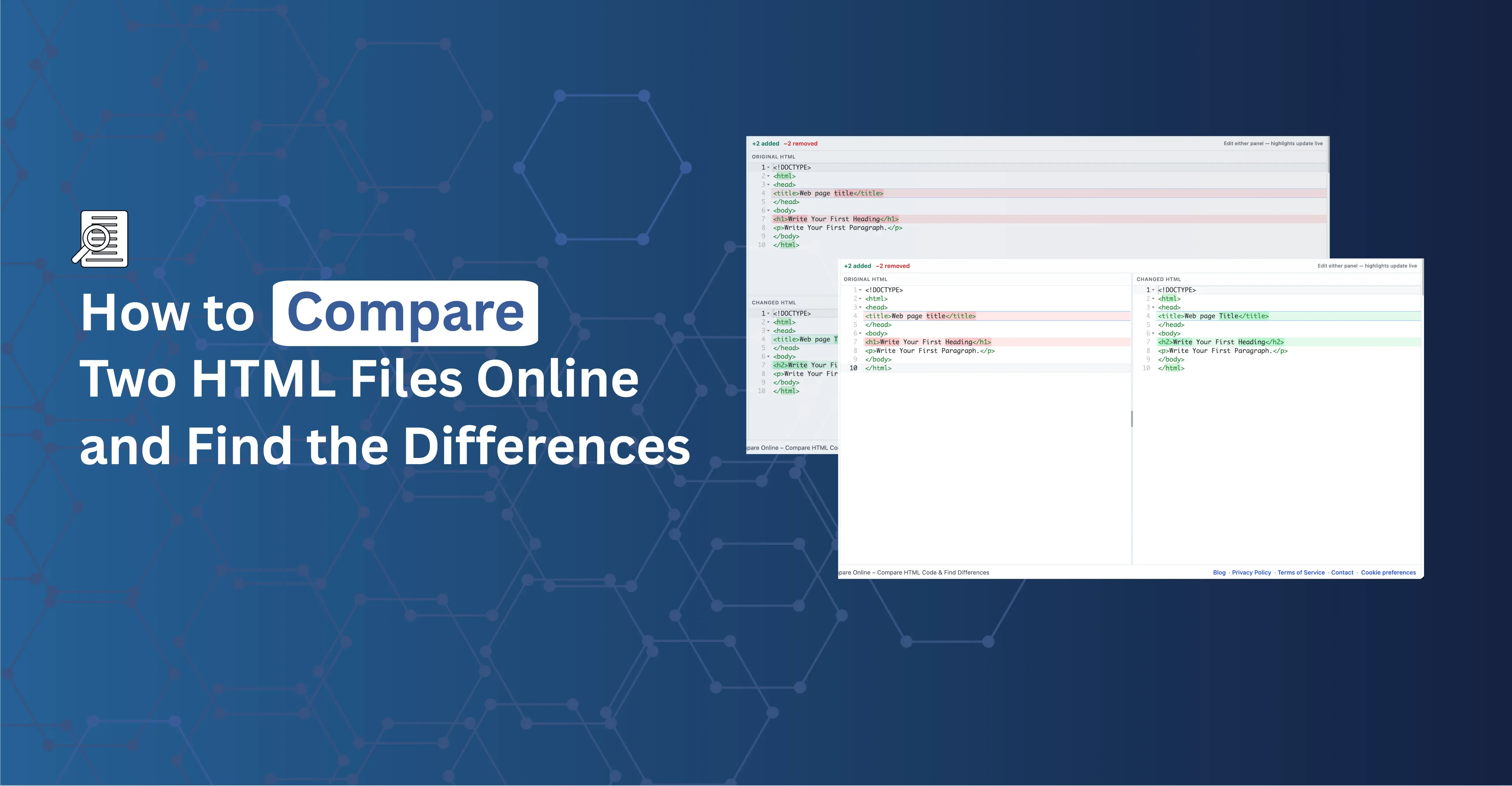
Quick answer: To compare two HTML files online, open HTML Compare, paste your original HTML into one panel and the updated version into the other. The tool highlights additions and removals at the line and word level, side by side or in a unified view — all in your browser, with nothing uploaded to a server.
HTML diff — comparing two versions of markup to see exactly what changed — is one of the most underused steps in an HTML workflow. Most people eyeball the before and after manually, which is slow and misses subtle changes like a deleted attribute or a swapped word. HTML Compare removes the guesswork: paste both versions in, and it highlights exactly what was added, removed, or changed, down to the word.
What Is HTML Compare?
HTML Compare is a free, browser-based HTML diff checker. It takes two HTML text documents — your original and your changed version — and highlights the differences between them with line-level and word-level detail. It's a text-based comparison, not a semantic DOM-tree comparison: it compares the characters and tokens you provide, the same way a code diff tool would, rather than parsing both versions into a DOM and comparing the rendered structure.
That distinction matters in practice. Two HTML documents can render identically while having different source code (different attribute order, extra whitespace, a redundant wrapper tag), and small text differences don't always produce a visible difference on the page. HTML Compare tells you what changed in the text; combine it with HTML Viewer when you also need to confirm what changed visually.
When to Use HTML Compare
- Reviewing website updates. When a page has been edited, compare the previous and current HTML to see exactly what markup was added, removed, or modified.
- Comparing email templates. Email HTML is often long and table-based, where small changes can affect layout, links, or tracking URLs. Compare an earlier build against a revised one before sending a campaign.
- Reviewing CMS changes. If content was edited through a CMS, compare the old and new HTML to understand what changed before publishing.
- Checking a client's original HTML against your revision. A diff shows exactly what you changed — more precise than describing it verbally.
- Confirming a "small fix" didn't delete something important. It's easy to accidentally remove a few lines while editing. A diff catches this before you publish.
- Debugging template-engine output. Compare rendered output from a templating system or a CMS build to spot a missing closing tag or an unexpected attribute.
- Documentation and code review. Download the
.diffoutput to attach to a ticket, a pull request note, or a review thread.
How to Compare Two HTML Files, Step by Step
- Add your original and changed HTML. Open HTML Compare and paste your original HTML into one panel and the updated version into the other. You can also import a file for each side, or load the sample content to see how it works.
- Choose your comparison view. Use Side by Side to review both versions together, or switch to the unified view. Turn on Word Wrap, Live Highlight, Sync Scroll, or Trim Lines to make larger comparisons easier to read.
- Review the differences. Additions and removals are highlighted at the line and word level. Use Previous Change and Next Change to step through the document instead of scrolling and searching manually.
- Swap or reset if needed. Use Swap to reverse which version is on which side, or Reset to start over with new content.
- Download the diff. When you're done, download the
.difffile to keep a record for documentation, a code review, or a project ticket.
Everything runs in your browser. Your HTML isn't uploaded to a server unless you choose to export or share the downloaded file yourself.
Tips for Cleaner, More Useful Comparisons
- Turn on Trim Lines when whitespace isn't the point. If one version has different indentation but the same content, Trim Lines reduces whitespace noise so you can focus on meaningful text differences.
- Format before comparing if both versions are minified. Run each version through HTML Formatter first. Comparing two unformatted, single-line files makes every line "different" even when only a small part changed.
- Use Sync Scroll in side-by-side view. Keeping both panels scrolling together makes it easier to visually correlate a change on one side with its counterpart on the other.
- Step through with Previous/Next Change on long documents. On a long page or email template, jumping change-to-change is far faster than scanning the whole comparison by eye.
- Download the
.diffbefore you close the tab. If you need to share the comparison or attach it to a ticket, download it once you're satisfied — the comparison itself isn't saved automatically.
HTML Compare vs Git Diff vs Typical Online Diff Checkers
There are several ways to diff HTML, and each fits a different situation.
| - | Git diff | Typical online diff checkers | HTML Compare (Tools Viewer) |
|---|---|---|---|
| Works on | Files committed to a repository | Any two pasted blocks of text | blocks of text Pasted or imported HTML, files or snippets |
| Requires a repo/terminal | Yes | No | No |
| Uploads content to a server | No (local repo) | Often yes | No — runs locally in the browser |
| Word-level highlighting | Depends on tool | Varies | Yes, alongside line-level |
| Side-by-side and unified views | Varies | Varies | Both, switchable |
| Downloadable .diff output | Yes (native to git) | Varies | Yes |
| Best for | Tracking changes across a codebase over time | A quick one-off comparison | Reviewing HTML, email, or CMS changes privately, without a repo |
Git diff is excellent for tracking changes across a codebase over time, but it only works on files already committed to a repository, and it requires a terminal and a git workflow — not useful for a one-off snippet comparison.
Typical online diff checkers let you paste two versions and compare them, which covers the basic case. The difference to check for is where your content goes: many send it to a server to compute the comparison, which matters if the HTML you're comparing contains anything sensitive.
HTML Compare runs the comparison locally in your browser, supports both side-by-side and unified views, highlights at the word level (not just the line), and lets you step through changes one at a time or download a .diff file when you need a record.
Compare First, Then Preview the Result
HTML Compare tells you what changed in the text. If you also need to see what that change looks like rendered, paste the updated version into HTML Viewer to preview it, or use its Inspect mode to click an element in the preview and jump to its source line. The two tools answer different questions: HTML Compare shows you what changed in the markup, HTML Viewer shows you what that produces visually.
Using HTML Compare for Email HTML
Email HTML often needs careful review because even small changes can affect layout, links, tables, images, or styles. Compare an earlier email template against a revised version before sending, so you can confirm the intended content changed while catching anything unexpected — a tracking link that got overwritten, a table attribute that silently changed, or a heading that didn't update the way you expected.
Conclusion
Eyeballing two versions of HTML to spot what changed is slow and easy to get wrong — a deleted attribute or a single swapped word is easy to miss by reading alone. HTML Compare handles that for you: paste both versions in, and line- and word-level highlights show exactly what was added or removed, with a downloadable .diff when you need to keep a record.
It's a text-based comparison, so pair it with HTML Viewer when you also need to confirm how a change renders on the page.
FAQs
How do I compare two HTML files online?
Does HTML Compare upload my code to a server?
.diff file yourself.Does HTML Compare do a semantic DOM comparison?
What's the difference between HTML Compare and Git diff?
Can I save or share a comparison?
.diff file to attach to a ticket, a code review, or a project record.