
Introduction
Want to build your first personal website but only have a Chromebook? You don't need an expensive laptop, paid software, or advanced programming skills to get started.
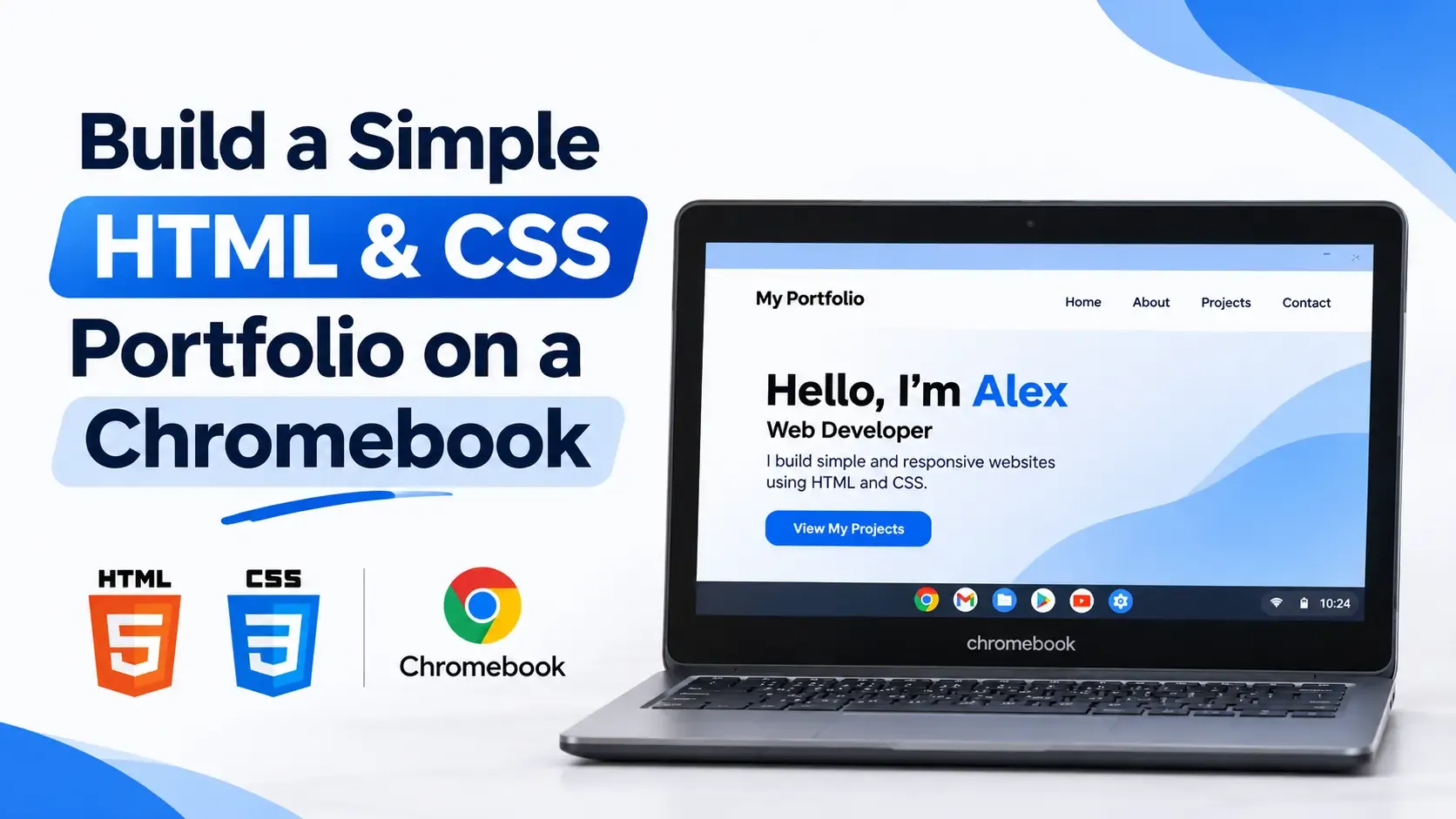
You can create an HTML CSS portfolio on Chromebook using a simple text editor, the Files app, and Google Chrome. HTML gives your portfolio its structure, while CSS controls its colors, layout, fonts, and overall appearance.
In this beginner-friendly tutorial, you'll build a complete, responsive portfolio website from scratch. You'll create the HTML and CSS files, add your personal information, style the page, preview your work, and save the finished project.
By the end, you'll have a working portfolio that you can customize for school, freelance work, internships, or job applications.
Can You Build an HTML and CSS Portfolio on a Chromebook?
Yes. You can build a complete HTML and CSS portfolio website on a Chromebook without installing Windows, Linux, or expensive development software.
ChromeOS supports basic web development because HTML and CSS files can be created with a text editor and displayed in the Chrome browser.
Here's what you need:
| Requirement | Purpose |
|---|---|
| Chromebook | Your development device |
| Text editor | Write HTML and CSS code |
| Files app | Organize and save project files |
| Google Chrome | Preview your portfolio |
| Internet connection | Optional for online tools and publishing |
Once your files are saved locally, you can work on your portfolio without an internet connection.
Step 1: Create Your Portfolio Project Folder
Before writing code, create a folder to keep your project organized.
- Open the Files app on your Chromebook.
- Go to My files.
- Create a new folder named
my-portfolio. - Open the folder.
- Prepare to create two files:
index.htmlandstyle.css.
Your project should have this structure:
my-portfolio/├── index.html└── style.css
The index.html file will contain your portfolio's content. The style.css file will control its design.
Beginner tip: Keep both files in the same folder so your HTML can find the stylesheet easily.
Step 2: Write the HTML for Your Portfolio
HTML stands for HyperText Markup Language. It defines the content and structure of a webpage.
For this project, we'll create a simple portfolio with four sections:
- Home
- About Me
- Projects
- Contact
Open a text editor that supports plain-text files, create a new document, and add the following HTML.
<!DOCTYPE html>
<html lang="en">
<head>
<meta charset="UTF-8">
<meta name="viewport"
content="width=device-width, initial-scale=1.0">
<meta name="description"
content="Explore my portfolio, projects, and skills.">
<title>My Portfolio | Web Developer</title>
<link rel="stylesheet" href="style.css">
</head>
<body>
<header class="site-header">
<nav class="container" aria-label="Main navigation">
<a class="logo" href="#home">MyPortfolio</a>
<ul class="nav-links">
<li><a href="#home">Home</a></li>
<li><a href="#about">About</a></li>
<li><a href="#projects">Projects</a></li>
<li><a href="#contact">Contact</a></li>
</ul>
</nav>
</header>
<main>
<section id="home" class="hero container">
<p class="eyebrow">Welcome to my portfolio</p>
<h1>Hello, I'm Alex</h1>
<p>
I'm a beginner web developer learning
HTML, CSS, and responsive web design.
</p>
<a href="#projects" class="button">
View My Projects
</a>
</section>
<section id="about" class="section container">
<h2>About Me</h2>
<p>
I'm passionate about creating clean,
accessible, and user-friendly websites.
I enjoy learning new web development
skills and building practical projects.
</p>
</section>
<section id="projects" class="section container">
<h2>My Projects</h2>
<div class="project-grid">
<article class="project-card">
<h3>Personal Website</h3>
<p>
A simple website created using
HTML and CSS.
</p>
</article>
<article class="project-card">
<h3>Landing Page</h3>
<p>
A responsive landing page with
a modern layout.
</p>
</article>
<article class="project-card">
<h3>Contact Page</h3>
<p>
A clean contact page designed
for easy navigation.
</p>
</article>
</div>
</section>
<section id="contact" class="section container">
<h2>Contact Me</h2>
<p>
Interested in working together?
Feel free to get in touch.
</p>
<a href="mailto:hello@example.com" class="button">
Send Email
</a>
</section>
</main>
<footer>
<p>© 2026 Alex. All rights reserved.</p>
</footer>
</body>
</html>Understanding the HTML Structure
A few important elements make this portfolio work:
<!DOCTYPE html>identifies the document as HTML5.<head>contains metadata and the stylesheet reference.<header>contains the website navigation.<main>holds the primary page content.<section>separates the portfolio into meaningful areas.<article>represents an individual project.<footer>contains the copyright information.
The viewport meta tag helps the browser display your layout correctly on mobile devices.
The stylesheet link connects your HTML file to the CSS you'll create next.
Step 3: Add CSS to Style Your Portfolio
Your portfolio now has content, but it needs styling.
CSS stands for Cascading Style Sheets. It controls how HTML elements look, including spacing, typography, backgrounds, buttons, and responsive layouts.
Create a new file named style.css in the same folder as index.html.
Add the following code:
/* Global styles */

* {
  box-sizing: border-box;
}

html {
  scroll-behavior: smooth;
}

body {
  margin: 0;
  font-family: Arial, sans-serif;
  line-height: 1.6;
  color: #1f2937;
  background: #f8fafc;
}

.container {
  width: min(90%, 1100px);
  margin: 0 auto;
}

/* Header */

.site-header {
  background: #ffffff;
  border-bottom: 1px solid #e5e7eb;
}

nav {
  display: flex;
  justify-content: space-between;
  align-items: center;
  gap: 20px;
  padding: 20px 0;
}

.logo {
  font-size: 22px;
  font-weight: bold;
  color: #2563eb;
  text-decoration: none;
}

.nav-links {
  display: flex;
  flex-wrap: wrap;
  gap: 20px;
  list-style: none;
  padding: 0;
  margin: 0;
}

.nav-links a {
  color: #1f2937;
  text-decoration: none;
}

.nav-links a:hover {
  color: #2563eb;
}

/* Hero section */

.hero {
  padding: 100px 0;
  text-align: center;
}

.eyebrow {
  color: #2563eb;
  font-weight: bold;
}

.hero h1 {
  font-size: clamp(32px, 5vw, 52px);
  margin: 10px 0;
}

.hero p {
  max-width: 600px;
  margin: 15px auto;
}

/* Buttons */

.button {
  display: inline-block;
  margin-top: 20px;
  padding: 12px 24px;
  background: #2563eb;
  color: #ffffff;
  border-radius: 8px;
  text-decoration: none;
}

.button:hover {
  background: #1d4ed8;
}

/* Content sections */

.section {
  padding: 65px 0;
}

.section h2 {
  font-size: 30px;
  margin-bottom: 20px;
}

/* Project cards */

.project-grid {
  display: grid;
  grid-template-columns: repeat(3, 1fr);
  gap: 20px;
}

.project-card {
  padding: 25px;
  background: #ffffff;
  border: 1px solid #e5e7eb;
  border-radius: 12px;
}

.project-card h3 {
  margin-top: 0;
  color: #2563eb;
}

/* Footer */

footer {
  padding: 25px;
  background: #111827;
  color: #ffffff;
  text-align: center;
}

/* Responsive design */

@media (max-width: 768px) {
  nav {
    flex-direction: column;
  }

  .nav-links {
    justify-content: center;
  }

  .hero {
    padding: 65px 0;
  }

  .project-grid {
    grid-template-columns: 1fr;
  }

  .section {
    padding: 45px 0;
  }
}
What Does This CSS Do?
The stylesheet gives your portfolio a clean design with a white navigation bar, blue buttons, organized project cards, and comfortable spacing.
It also uses CSS Grid to arrange three project cards across wider screens.
The @media rule changes the layout on screens 768 pixels wide or smaller, stacking the cards vertically and adjusting the navigation.
This is called responsive web design, and it helps your portfolio work across Chromebooks, tablets, and smartphones.
Step 4: Save Your HTML and CSS Files on Chromebook
Saving your files correctly is essential.
Use a plain-text editor that allows you to save files with custom extensions.
Save the HTML code as:
index.html
Save the CSS code as:
style.css
Both files must be inside the my-portfolio folder.
Common Saving Mistakes
Avoid filenames such as:
index.html.txtstyle.css.txtindex.htm.html
These can happen when an editor automatically adds a text extension.
Check the filenames in the Chromebook Files app before continuing.
Also, remember that filenames are case-sensitive in many web hosting environments. Use the same capitalization in your HTML stylesheet reference and actual filename.
Step 5: Preview Your HTML Portfolio in Chrome
Once both files are saved, you can test your website.
- Open the Chromebook Files app.
- Navigate to your
my-portfoliofolder. - Open
index.htmlin Chrome. - Check the layout, navigation, and project cards.
- Edit your files and refresh the browser to see changes.
If your Chromebook opens the file in another app, use the available Open with options to select Chrome.
Depending on your ChromeOS version and file location, local HTML file handling may vary. You can also use a browser-based HTML preview tool if needed.
Preview HTML Without Installing Software
ToolsViewer offers an HTML Viewer that can help you inspect and preview HTML code in your browser.
This can be useful when testing HTML structure or checking individual sections without installing a full development environment.
However, for this two-file project, opening index.html locally is preferable because it lets you test whether the external style.css file loads correctly.
Step 6: Customize Your Portfolio Website
Your portfolio is now functional, but it still contains example information.
Replace the sample content with your own details.
Update Your Name and Introduction
Find:
<h1>Hello, I'm Alex</h1>Replace it with your name.
You can also update the introductory paragraph to describe your skills, interests, or career goals.
Add Your Own Projects
Replace the example project cards with work you've completed.
For each project, include:
- Project name
- Short description
- Technologies used
- Link to the project, if available
Even beginner projects such as a calculator interface, landing page, or personal blog layout can help demonstrate your progress.
Change Your Website Colors
To change the primary blue color, find:
color: #2563eb;You can replace it with another valid CSS color.
For example:
color: #16a34a;This changes the relevant text color to green.
You can similarly adjust button backgrounds, headings, and borders to create a consistent visual identity.
Update Your Contact Information
Replace the sample email address:
<a href="mailto:hello@example.com"></a>with your own professional contact address.
The mailto: link opens the visitor's configured email application. It does not create a contact form or send messages automatically.
Step 7: Test Your Portfolio on Different Screen Sizes
A portfolio should be readable and easy to navigate on both desktop and mobile screens.
Your CSS already includes responsive styling, but testing is still important.
Check the following:
- Navigation links work correctly.
- Project cards fit smaller screens.
- Text remains readable.
- Buttons are easy to select.
- No content extends beyond the screen.
- The stylesheet loads successfully.
You can resize the Chrome window or use Chrome DevTools to inspect responsive layouts.
To open DevTools on many Chromebooks, press Ctrl + Shift + I, or open Chrome's menu and select the developer tools option when available.
Common Problems When Building an HTML CSS Portfolio on Chromebook
CSS Is Not Working
If your website displays plain HTML without styling, check the stylesheet link:
<link rel="stylesheet" href="style.css">Make sure style.css exists in the same folder as index.html.
HTML Opens as Text
Check whether the file was accidentally saved with a .txt extension. Rename it to index.html if necessary and open it in Chrome.
Changes Are Not Appearing
Save your latest edits and refresh the browser. If the old design remains visible, verify that you're editing the same file that Chrome is displaying.
Website Looks Different on Mobile
Check that your HTML contains the viewport meta tag and that your CSS includes the responsive media query.
Also, avoid fixed-width elements that are wider than the available screen.
Can You Publish Your Chromebook Portfolio Online?
Yes. After building your portfolio locally, you can publish the HTML and CSS files using a static website hosting service.
Popular options include GitHub Pages, Netlify, and Cloudflare Pages.
For a simple static portfolio, you generally need to upload your project files and follow the hosting provider's deployment instructions.
Make sure your main file is named index.html and that the stylesheet remains in the correct location.
Once published, your portfolio can be shared through a public website URL.
Why Learning HTML and CSS on Chromebook Is Worth It
Building a portfolio is one of the most practical ways to learn front-end web development.
Instead of only reading HTML and CSS tutorials, you create a real project that demonstrates how webpage structure and styling work together.
A Chromebook is suitable for learning these fundamentals because the project requires only a text editor and browser.
As your skills improve, you can add more pages, project images, animations, and JavaScript interactions.
You can also explore ToolsViewer's HTML-related utilities to inspect, format, and troubleshoot code while learning.
FAQ
Can I build an HTML and CSS portfolio on a Chromebook for free?
Do I need Linux to write HTML on Chromebook?
Can I make a responsive portfolio using only HTML and CSS?
How do I connect CSS to HTML on Chromebook?
<link rel="stylesheet" href="style.css"> inside your HTML document's <head> section. Make sure the CSS filename and path match the saved file.Can I build a portfolio offline on Chromebook?
How do I share my HTML portfolio with others?
Is a Chromebook good enough for beginner web development?
Conclusion
Building an HTML CSS portfolio on Chromebook is a practical beginner project that helps you learn how real websites are created.
With just two files, index.html and style.css, you can build a responsive personal website featuring an introduction, project showcase, and contact section.
Start with the example code, customize the design, test it in Chrome, and save your finished project. As you learn more HTML and CSS, continue improving your portfolio with new projects and features.
A simple, well-organized portfolio is a strong starting point for developing your web design skills and showcasing your work online.