
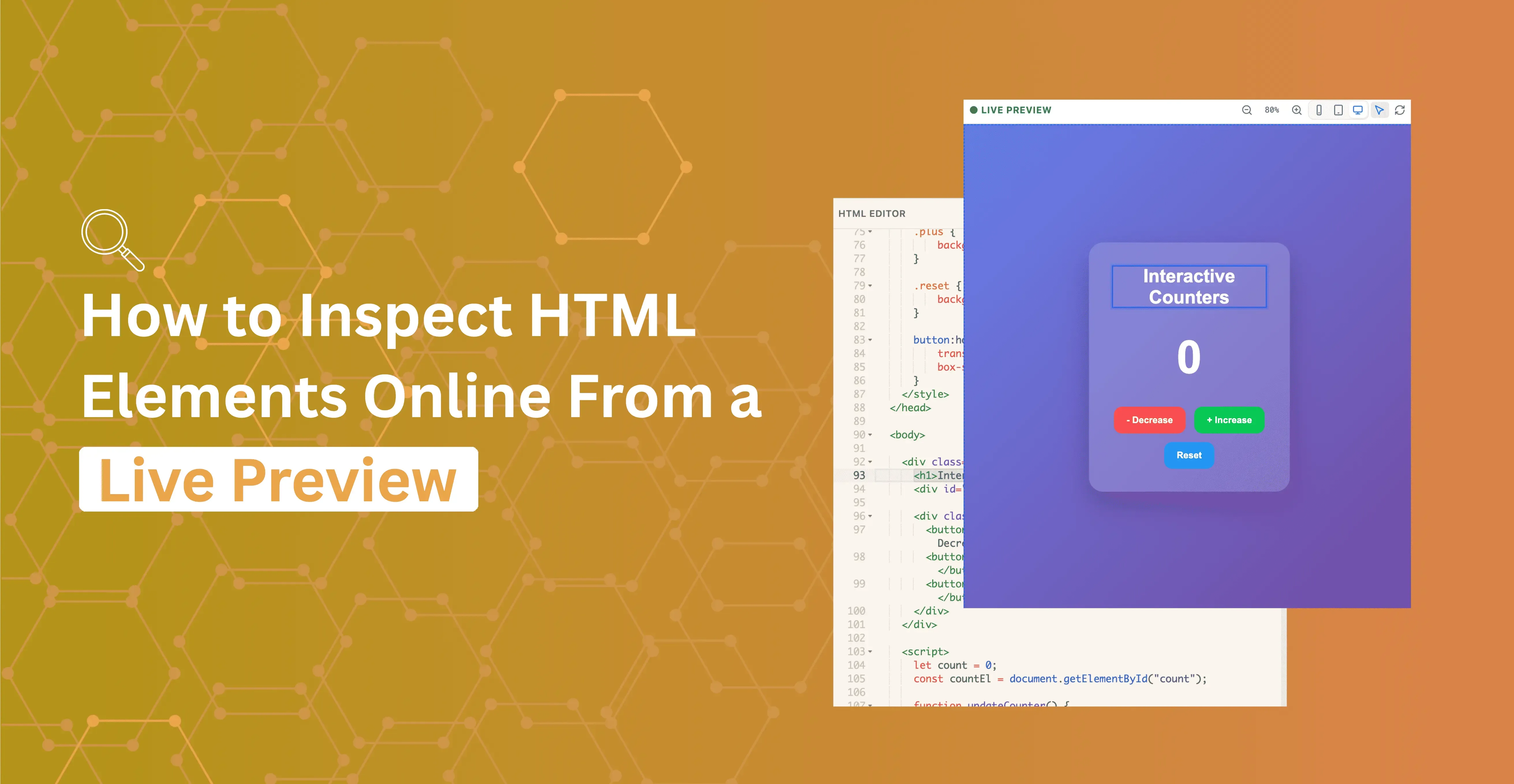
Quick answer: To inspect an HTML element online without a live URL or DevTools, paste your markup into HTML Viewer, turn on Inspect mode, and click the element in the live preview. The editor scrolls to and highlights the exact source line that produced it — useful for pasted snippets, templates, and files that aren't hosted anywhere yet.
Finding the source line behind a broken element in a large HTML file is one of the slowest parts of debugging markup. Scrolling through hundreds of tags to find a misaligned <div> or a missing class is tedious and error-prone, and browser DevTools only work once a page is actually hosted at a URL. HTML Viewer's inspect element linking closes that gap for code you're still editing: click any element in the live preview, and the editor immediately jumps to the matching source line — no server, no deployment, no separate DevTools panel.
Why Click-to-Inspect Beats Hunting Through Tags
Nested HTML grows complex fast. A real page or email template can have hundreds of elements, deeply nested tables, repeated class names, and structurally similar blocks, which makes visually scanning the code unreliable. A missing </div> three levels deep can shift everything that follows, and the visual symptom often appears nowhere near the actual source of the problem.
Click-to-inspect bridges the gap between rendered output and source code. Instead of asking "which tag produces this element?", you click the element and the answer appears immediately, highlighted in context.
How to Inspect an HTML Element Online, Step by Step
- Open HTML Viewer and load your markup by pasting it in or using Import.
- Click Inspect in the toolbar to turn on inspect mode. A cursor indicator in the preview confirms it's active.
- Click any element in the live preview. The editor on the left scrolls to and highlights the matching source line.
- Edit the source directly. The live preview updates immediately to reflect your change.
- Click Inspect again to turn the mode off and return to normal preview scrolling.
Nothing is uploaded to a server as part of this — the HTML you paste is parsed and rendered locally in your browser tab.
When Click-to-Inspect Is Most Useful
Inspect mode is most valuable in four situations:
- Layout bugs. Something in the preview looks wrong — misaligned, overflowing, or missing entirely. Click the broken-looking area and jump straight to the markup responsible, instead of guessing which block it belongs to.
- Copied CMS or email HTML. When you receive or paste complex markup you didn't write, the structure is unfamiliar. Inspect lets you navigate it visually rather than reading it top to bottom.
- Teaching and code review. Show a student or teammate the connection between what they see in the preview and where it lives in the source — more effective than pointing at a line number over a call.
- After formatting or minifying. Once a large file has been reformatted, line numbers change. Click an element to reorient yourself in the newly structured source instead of searching for it again.
Pair Inspect With Validate, Diff, and Find
Inspect is most powerful alongside the other tools in HTML Viewer, since each one answers a different question:
| Tool | Answers | Best used |
|---|---|---|
| Inspect | Where is this element in the source? | After spotting something wrong visually |
| Validate | What is structurally wrong — broken tags, bad nesting, duplicate IDs? | Before inspect, to find the category of error |
| Diff | What changed between two versions? | When a preview looks different after an edit |
| Find in code | Where else does this class, ID, or attribute appear? | After inspect reveals a class name worth tracing |
A typical workflow: run Validate to find the category of error, use Inspect to locate the specific instance in context, then Find in code to check whether the same class or ID appears elsewhere in the file. This combination is faster than any single approach alone, especially on large or unfamiliar HTML.
Inspect HTML Online vs Browser DevTools
Browser DevTools — Chrome DevTools, Firefox Inspector, Safari Web Inspector — have an inspect element feature that looks similar on the surface but solves a different problem.
| - | Browser DevTools | HTML Viewer's Inspect |
|---|---|---|
| What it inspects | The live, parsed DOM of a hosted page, including runtime JavaScript changes | including runtime JavaScript changes The source you're actively editing |
| Requires hosting | Yes — a page with a URL | No — works on pasted snippets, templates, or local files |
| Shows auto-corrections | Yes, the browser's parsed version, which may differ from your source | differ from your source No, it maps directly back to your source text |
| Best for | Debugging a live, deployed page | Editing and reviewing HTML source before it's deployed |
Browser DevTools inspect the live page structure — the version of the document the browser has parsed and rendered, including any changes JavaScript made at runtime. DevTools show what the browser decided to do with your markup, including auto-corrections, not necessarily what your source file says. They also require a hosted page with a URL.
HTML Viewer's Inspect maps the preview back to the source you're editing. It's built for the active editing workflow: click an element, find its line, fix it, watch the preview update. There's no hosting required and no runtime parser silently rewriting your markup before you see it.
For debugging a live, deployed page, DevTools is the right tool. For editing and reviewing HTML source — snippets, templates, files, or generated markup that isn't online yet — inspecting it online in HTML Viewer is faster and more direct.
Using Inspect With HTML / CSS / JS Panels
Inspect is available in the single-editor view; it isn't currently supported in HTML / CSS / JS panels mode, where HTML, CSS, and JavaScript are split into separate panes. If you're debugging markup split across panels, switch back to the single-editor view to use click-to-source, then return to panels mode once you've found the element you need to change.
Conclusion
Debugging markup by scrolling through hundreds of lines is slow and unreliable, especially in deeply nested or unfamiliar HTML. Inspecting HTML elements online with a click-to-source tool removes the guesswork: click what looks wrong in the preview, and the exact source line is highlighted for you. Pair it with validate, diff, and find-in-code, and most layout bugs take far less time to track down than scanning code by eye.
HTML Viewer runs entirely in your browser, so you can inspect, edit, and preview markup — pasted, imported, or written from scratch — without hosting it anywhere first.