
Chromebooks run ChromeOS, which handles .html files differently from Windows or macOS. There is no built-in code editor and no "Open with" menu full of desktop apps — the Files app simply hands the file to Chrome, and Chrome renders it as a normal web page. That's fine if you only need to view an HTML file on Chromebook, but it leaves you stuck if you need to read the source, make a quick edit, or check why a page looks broken.
This guide covers every practical way to open, view, and edit an HTML file on a Chromebook — from the built-in Files app to a browser-based HTML editor, drag-and-drop, email attachments, and the Linux terminal for advanced users.
What Happens When You Open an HTML File on ChromeOS
ChromeOS treats an .html file as something to render, not something to edit. When you double-click it in the Files app:
- Chrome opens a new tab.
- The address bar shows a local
file:///URL instead ofhttps://. - You see the page exactly as a browser would display it — styling, layout, and all.
- There is no code panel, no syntax highlighting, and no save option, because you're looking at rendered output, not the underlying markup.
This is normal ChromeOS behavior, not an error. If you only wanted to preview the page, you're done. If you need to see or change the HTML itself, keep reading.
Method 1: Open an HTML File in Chrome (View Only)
This is the fastest way to open an HTML file on Chromebook when you only need to see the rendered page.
- Open the Files app from the shelf or the app launcher.
- Navigate to the folder that contains your
.htmlfile (often Downloads or My files). - Double-click the file. Chrome opens it as a web page with a
file:///address in the URL bar.
Use this method to quickly check what an HTML file looks like. It does not let you view or edit the source code — for that, use Method 2.
Method 2: Use a Browser-Based HTML Viewer (View and Edit)
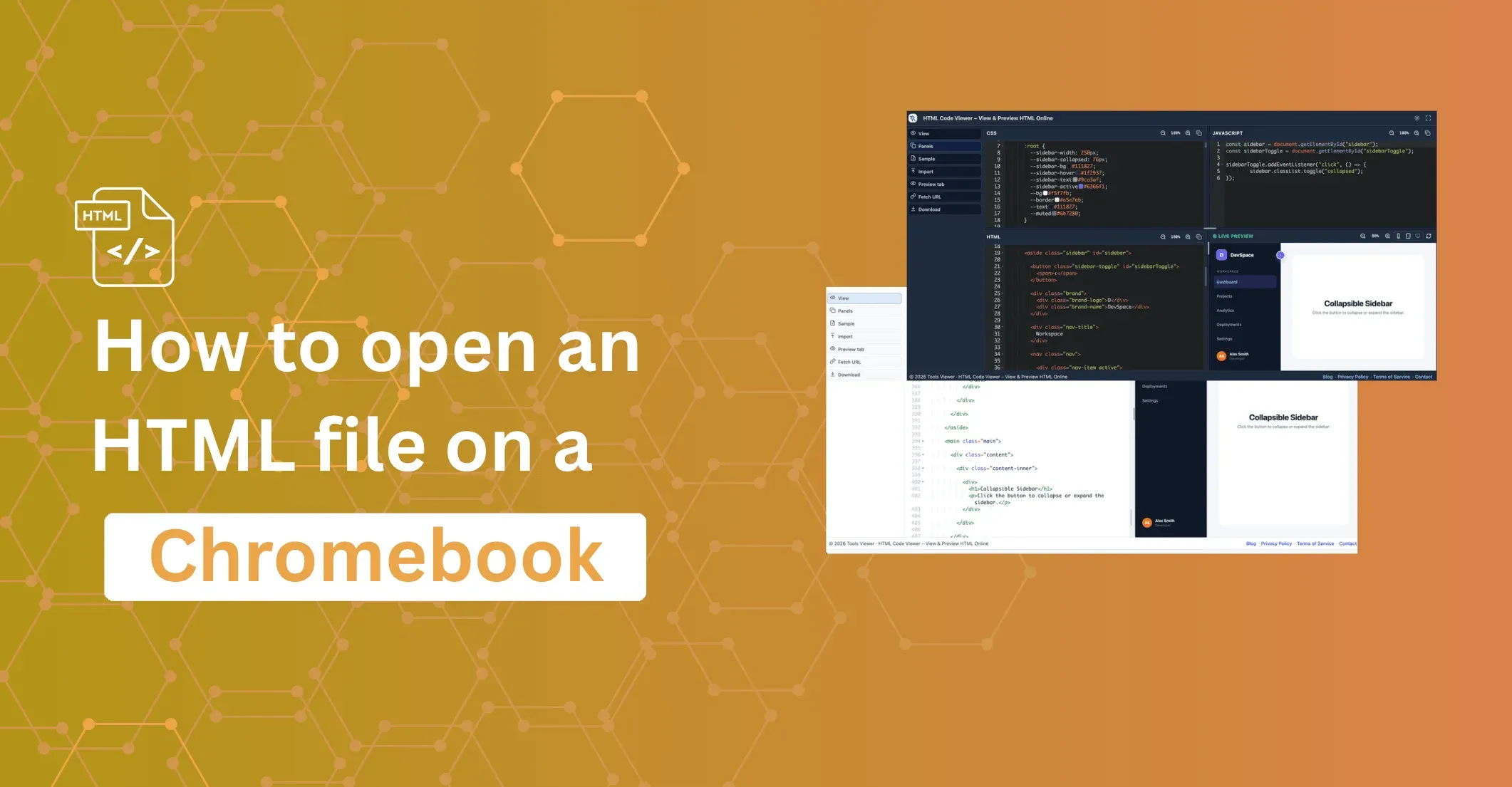
HTML Viewer runs entirely inside Chrome on your Chromebook. You can open any local HTML file, see the source code, get a live preview, and make edits — without installing an app, enabling developer mode, or setting up Linux.
- Open Chrome and go to HTML Viewer.
- Click Open File in the toolbar, or drag your
.htmlfile onto the editor panel. - The file loads into the code editor on the left. The live preview renders on the right.
- Edit the code directly. The preview updates as you type.
- Use the toolbar to format, minify, validate, or diff the HTML without switching tabs or tools.
Your file never leaves your Chromebook — nothing is uploaded to a server unless you choose to export or share it.
Method 3: Drag an HTML File Into the Browser
You don't need to open a file picker at all. You can drag a .html file straight from the Files app into an open browser tab.
- Open the Files app and your browser window side by side (or use split-screen).
- Drag the file onto the browser's tab bar.
- Drop it on an existing tab, or between tabs to create a new one. Chrome renders the page.
This opens the rendered page, the same as Method 1 — it does not show the source. To see and edit the code at the same time, drop the file into HTML Viewer instead; it displays both panels together.
Method 4: Open an HTML File From Email or a Download
If someone sends you an HTML file as an email attachment, or you download one from a website:
- Save or download the file. It usually lands in your Downloads folder.
- Open the Files app and go to Downloads.
- Double-click the file to view it in Chrome, or drag it into HTML Viewer if you also want to edit it.
This is the same underlying process as opening any local file — Chromebooks don't treat email attachments differently once they're saved to disk.
Method 5: Use the Linux Environment (Advanced)
If you've enabled the Linux development environment on your Chromebook, you can edit HTML with a terminal-based editor such as Nano or Vim. This method suits developers who are comfortable with the command line.
- Go to Settings → Advanced → Developers and turn on the Linux development environment.
- Open the Terminal app.
- Navigate to your file, for example:
cd /mnt/chromeos/MyFiles/Downloads - Open the file:
nano myfile.html - Edit the code, then press
Ctrl+X,Y, andEnterto save and exit. - Open the file in Chrome to preview your changes.
This gives you full command-line control, but it requires enabling Linux, learning a terminal editor, and manually switching between the editor and the browser to preview changes — more setup than most people need for a quick edit.
Can You Save Edited HTML Back to a File on Chromebook?
Yes. In HTML Viewer, click Download in the toolbar. Chrome saves the current editor content as a .html file to your Downloads folder, and you can then move, rename, or share it from the Files app like any other file.
Chromebook vs Windows vs Mac: Opening HTML Files
The core difference is that Windows and macOS ship with an "Open with" menu and often a lightweight text or code editor already installed, while ChromeOS does not.
| Task | Windows / macOS | Chromebook (ChromeOS) |
|---|---|---|
| View rendered HTML | Double-click → opens in default browser | Double-click in Files app → opens in Chrome |
| View/edit raw source | Right-click → "Open with" → Notepad/TextEdit/code editor | No built-in code editor — use a browser-based tool like HTML Viewer |
| Install a code editor | Native desktop apps (VS Code, Sublime, etc.) | Android app (if supported) or Linux environment |
| Command-line editing | Terminal / PowerShell with an editor | Linux development environment required |
| Works without setup | Usually yes | Yes, via a browser tool — no install needed |
For most day-to-day use, a browser-based HTML viewer closes this gap without any extra setup, which is why it's the recommended method for Chromebook users in this guide.
HTML File Won't Open on Chromebook
The file downloads instead of opening. Some browsers or file managers are set to download .html files rather than open them. Check the Files app's default behavior for the .html extension, or open the file directly through HTML Viewer instead of relying on double-click behavior.
The page opens blank. The HTML may reference local images, CSS, or scripts using relative paths that don't resolve from a file:/// URL, or the markup may have a structural error. Open the file in HTML Viewer to inspect the source and check the browser's developer console for errors.
You see code instead of a rendered page. This can happen if the file extension isn't actually .html (for example, .txt renamed to look like HTML) or the file was saved with the wrong MIME type. Confirm the file extension in the Files app's detail view.
Chrome asks to choose an app. If a "Files" prompt asks which app should open the file, choose Chrome (or Chrome browser) and, if offered, set it as the default for .html files.
Why ChromeOS Handles HTML Files Differently
ChromeOS doesn't ship with a native code editor because the operating system is built around the Chrome browser itself. Most file editing on a Chromebook happens inside web apps, Android apps from the Play Store, or the optional Linux environment — not in a pre-installed desktop application.
For quick HTML work — opening a file someone sent you, checking the output of a template, or making a small fix — a browser-based tool is faster and simpler than installing an Android code editor or setting up Linux from scratch.
For more ways to preview and work with HTML, see how to open an HTML file online and how to preview HTML in a browser.
Conclusion
Opening an HTML file on a Chromebook is simple once you know which method fits what you're trying to do. Double-clicking a file in the Files app is enough if you only want to view the rendered page. If you need to read or edit the underlying code, a browser-based tool like HTML Viewer gives you a live editor and preview with nothing to install, while the Linux terminal remains an option for developers who prefer the command line.
For most Chromebook users — students, teachers, and anyone without admin rights to install software — ToolsViewer's HTML Viewer is the fastest way to open, view, and edit HTML files directly in Chrome.
FAQs
How do I open an HTML file on a Chromebook?
Can I edit an HTML file on a Chromebook without installing software?
.html file into the editor, and edit the code directly. The file stays on your device.Why does my HTML file open as a webpage instead of showing the code?
.html files in Chrome by default because it has no built-in code editor. This is expected behavior — use an HTML viewer/editor tool to see the source.Do I need Linux mode to work with HTML files on a Chromebook?
Can I save changes back to an HTML file on a Chromebook?
.html file directly to your Downloads folder.