
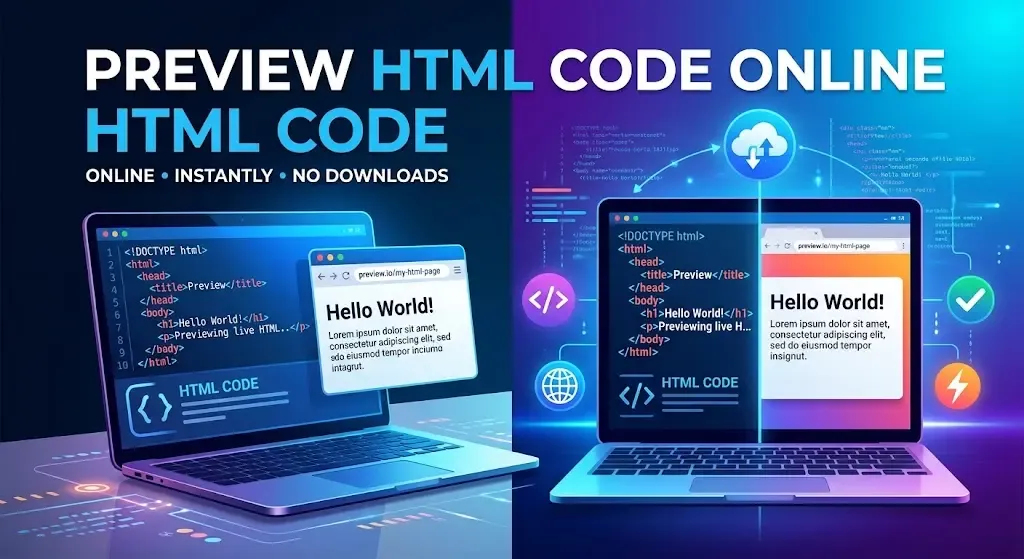
You can preview HTML code online in under a minute using a free online HTML previewer - no downloads, installs, or local server setup required. Just paste your HTML into the editor panel of a browser-based tool like HTML Viewer, and the live preview renders instantly on the same page. It works on any device with a browser, including tablets and Chromebooks that can't run traditional code editors.
This is one of the fastest ways to test a snippet, check how a layout looks, or share a quick demo with someone else all without touching your computer's file system or installing anything. Here's exactly how to do it, step by step.
What Is an Online HTML Previewer?
An online HTML previewer is a browser-based tool that renders HTML (and usually CSS and JavaScript) in real time, without needing a local development environment. Instead of saving a .html file and opening it in a browser manually, you write or paste code directly into a web page, and the tool displays the rendered result right next to it - updating live as you type.
This is different from a full code editor like VS Code, which needs to be installed, configured, and often paired with extensions just to preview a simple page. An online HTML previewer skips all of that, trading some advanced features for speed and zero setup.
How to Preview HTML Code Online (Step-by-Step)
- Open an online HTML viewer in your browser. Go to a browser-based tool such as HTML Viewer — no account or download is required to get started.
- Paste or type your HTML code into the editor panel. Most tools have a code panel on one side of the screen where you write or paste markup.
- Add CSS and JavaScript if needed. Many online previewers include separate panels for CSS and JavaScript so you can style and add interactivity without a build process.
- View the live rendered output. The preview panel updates automatically, usually within a second of you typing or pasting, showing exactly how the page will look in a real browser.
- Edit and refresh to test changes. Adjust your code and watch the preview update in real time - this tight feedback loop is what makes online previewing so much faster than the traditional save-and-refresh workflow.
- Share or save your work if needed. Many tools generate a shareable link so you can send a working preview to a colleague, client, or forum without exporting any files.
That's the entire process - there's no compiling, no local server, and no file management involved
Why Preview HTML Online Instead of Downloading Software
Online HTML previewers have become the default choice for quick testing, and for good reason:
- No installation — nothing to download, update, or uninstall later
- Works on any device — including Chromebooks, tablets, and locked-down work computers where installing software isn't allowed
- Instant results — no build steps, compilers, or local servers to configure
- Easy to share — a link does the job instead of sending files back and forth
- Free to use — most tools offer full preview functionality with no cost or sign-up
- No file clutter — nothing gets saved to your computer unless you choose to export it
For anyone who just needs to check how a piece of code behaves, downloading and configuring a full code editor is often overkill. An online previewer gets you the same visual result in a fraction of the time.
Common Use Cases
Online HTML previewing is useful in far more situations than just learning to code. Common examples include:
- Students and beginners testing HTML/CSS exercises without setting up a development environment
- Developers quickly testing a snippet found online before adding it to a real project
- Designers checking how a layout or component looks before handing it to a developer
- Marketers previewing HTML email templates before sending a campaign
- Freelancers sharing a working demo with a client for feedback, without exporting files
- Anyone debugging a small piece of broken markup in isolation, away from a larger codebase
Because there's no setup cost, an online previewer is often the first tool people reach for even if they also use a full code editor for larger projects.
Best Practices When Previewing HTML Online
A few habits make online previewing more effective, especially for anything beyond a quick test:
- Check the browser console for errors. Most online previewers include a console panel - use it to catch JavaScript errors that won't show up visually.
- Test at different screen widths. If your tool supports resizing the preview panel, check how your layout holds up on smaller screens before assuming it's mobile-friendly.
- Keep CSS and JavaScript in separate panels where possible. This keeps code organised and makes it easier to spot which part of your code is causing an issue.
- Avoid pasting sensitive data or credentials. Treat online tools like any other third-party service - don't paste API keys, passwords, or private business logic into a public previewer.
- Save shareable links for work you'll need again. If a tool offers saved links, use them instead of re-pasting the same code repeatedly.
Online Previewer vs. Local Setup: Which Should You Use?
Both approaches have a place. Choosing usually comes down to the size and lifespan of what you are building.
| - | Online HTML Previewer | Local Development Setup |
|---|---|---|
| Setup time | None | Minutes to hours |
| Best for | Quick tests, snippets, demos, learning | Full projects, multiple files, version control |
| Sharing | Export or screenshot | Requires exporting or hosting |
| Works offline | No | Yes |
| File management | Minimal | Full project folder structure |
If you're testing a single idea, debugging a small snippet, or showing someone how something looks, an online previewer is almost always faster. If you're building a full website with multiple pages, assets, and a build process, a local setup is still the better long-term choice - many developers use both, switching to an online previewer whenever they just need a quick, no-commitment answer.
Common Mistakes to Avoid
A few small mistakes account for most of the confusion people run into when previewing HTML online:
- Forgetting to link CSS and JS panels correctly - if your tool separates HTML, CSS, and JavaScript into different panels, styles and scripts written directly in the HTML panel may not run as expected.
- Assuming external files will load automatically - file paths that work on your local machine (like ../images/logo.png) often won't resolve inside an online previewer unless the tool specifically supports file uploads.
- Ignoring browser compatibility - a preview looking correct in one browser tab doesn't guarantee it will render identically everywhere; it's still worth spot-checking layout-heavy pages in your actual target browsers before shipping.
- Not checking the console - visual output can look fine while JavaScript errors run silently in the background; the console panel is the easiest way to catch these early.
Try It Yourself
If you want to see this in action, HTML Viewer lets you paste HTML, CSS, and JavaScript and see the live result immediately — no sign-up, no download, and no setup. It's built for exactly the workflow described above: paste, preview, tweak, and repeat, all in the browser.